B2B Saas platform
Achieved 9.6× ARR by simplifying a complex, high-margin purchase flow
Overview
ROLE
UX Research & Product Design
TIMELINE
Explorations to Shipped
16 Weeks
team
1 Product Designer, 1 Project Manager, 2 BE & 2 FE Devs



9.6x
Annual Recurring Revenue 💰
4x
New
Subscriptions ⬆️
2.3x
Transactional
Revenue 💰
3.2x
Active
Customers ⬆️
Driving Growth Through Thoughtful Design
Impact
Impact
Driving growth through thoughtful design
Driving growth through thoughtful design
9.6x
9.6x
Annual Recurring Revenue💰
Annual Recurring Revenue💰
4x
4x
New
Subscriptions ⬆️
New
Subscriptions ⬆️
2.3x
2.3x
Transactional Revenue💰
Transactional
Revenue 💰
3.2x
3.2x
Active Customers ⬆️
Active
Customers ⬆️
The Problem Space
Users need to cover large areas without paying multiple times for overlapping imagery
Users need to cover large areas without paying multiple times for overlapping imagery
Users need to cover large areas without paying multiple times for overlapping imagery
Problem ❓
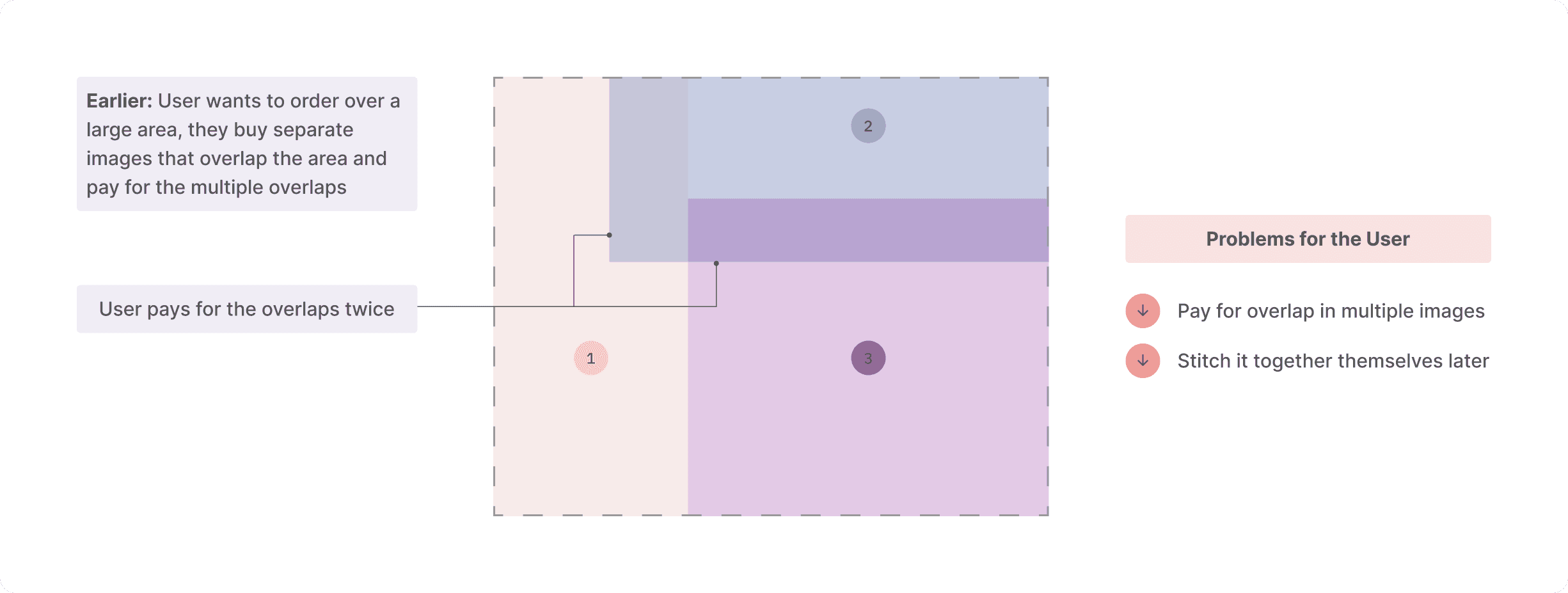
Power users who needed to order imagery over a large area often had to buy multiple images to cover their area and had to pay for the multiple overlaps between those images.
Goals 🎯
Business Goal: Be the industry leader in launching a feature currently offered by no other competitor and gain more subscribers
User/Product Goal: Simplifying the complex workflow and allowing users to increase their area coverage while saving money
The Desired Outcome
Empowering users to maximize area coverage at minimum cost
Empowering users to maximize area coverage at minimum cost
Empowering users to maximize area coverage at minimum cost
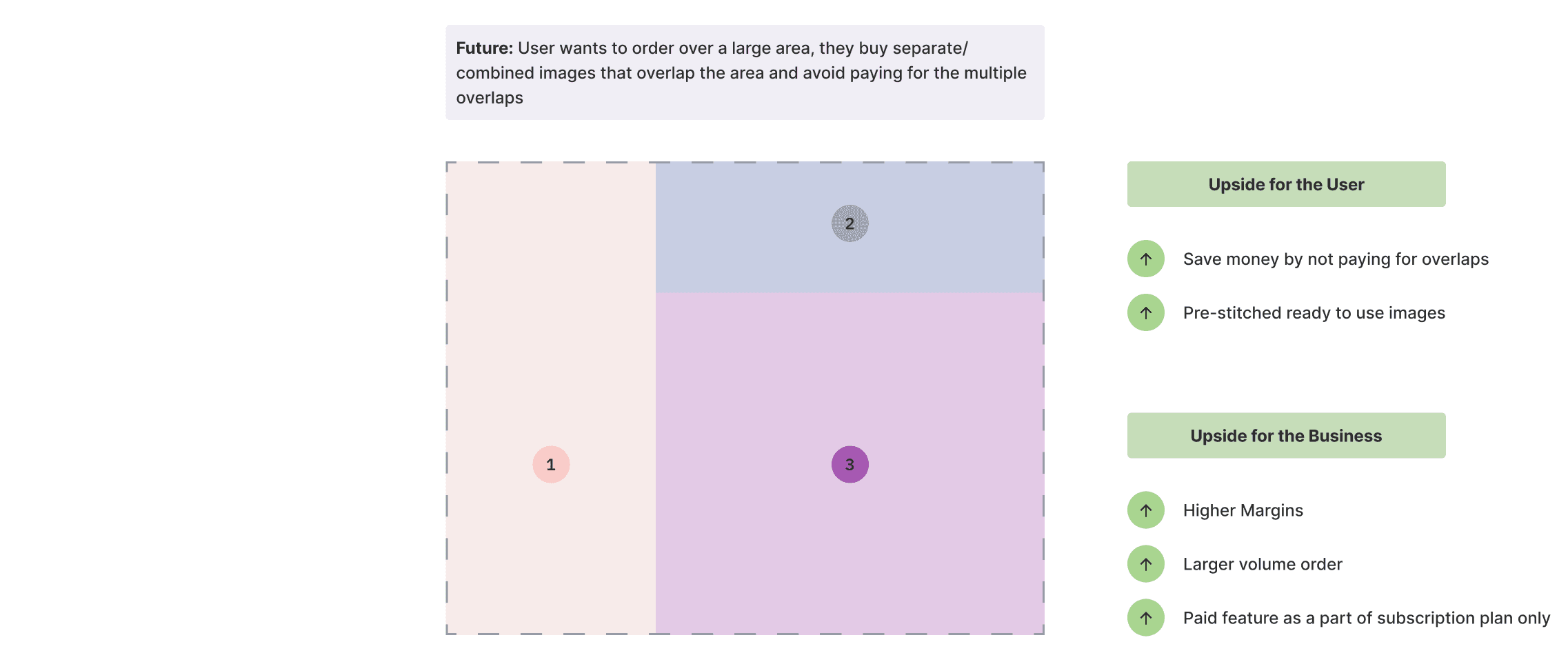
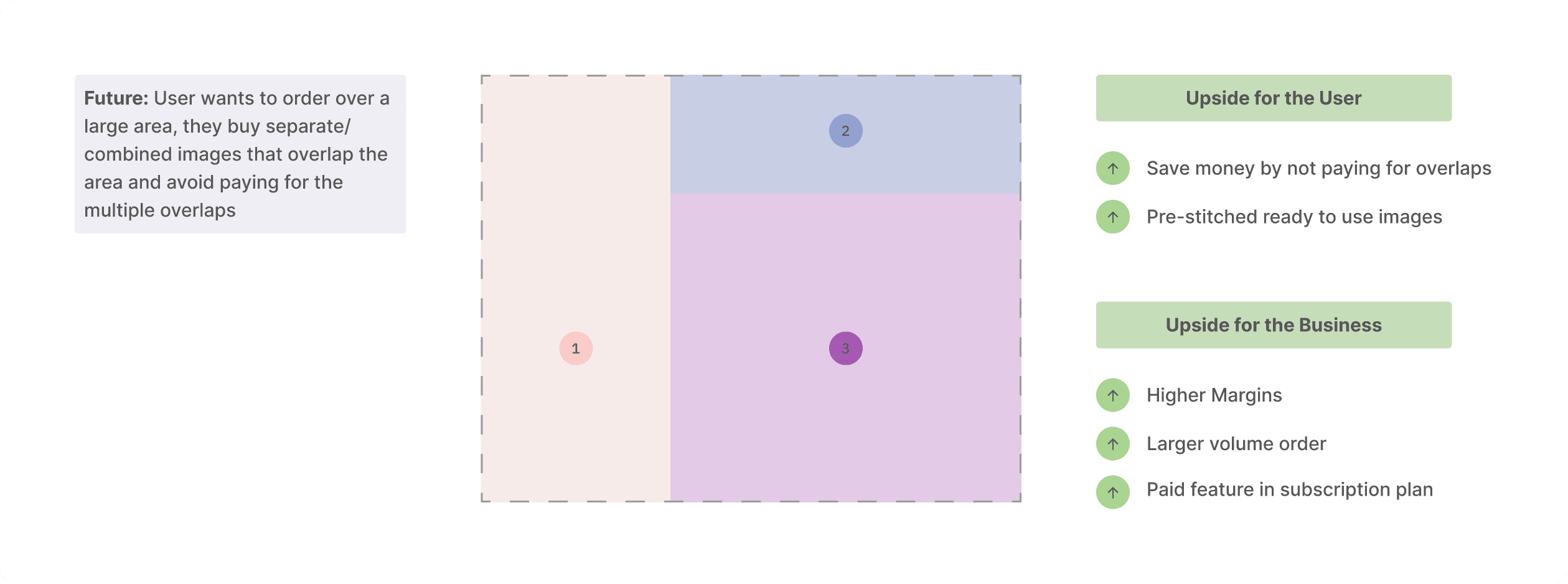
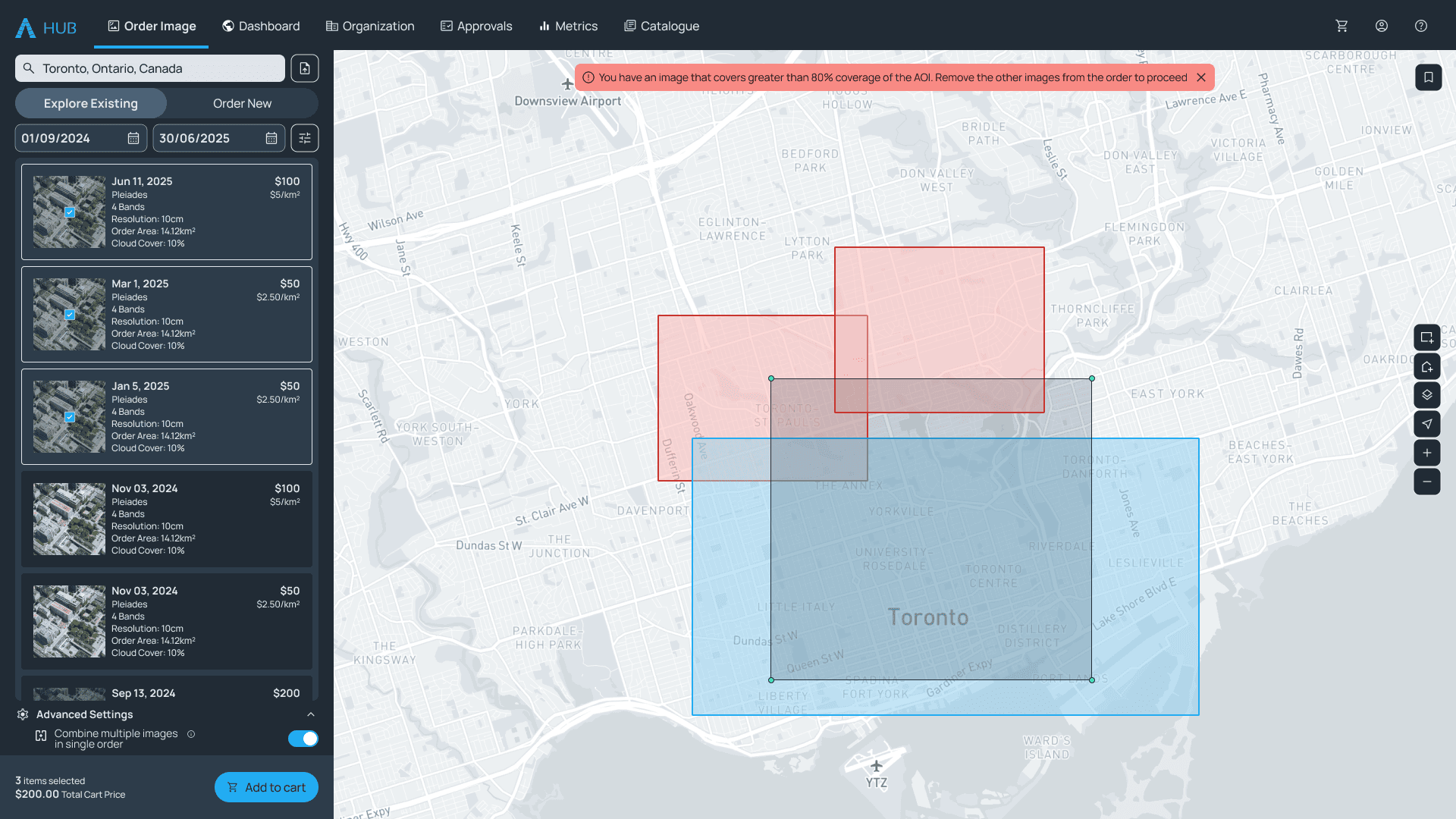
If a user can not find one single image to cover a large area, then they can choose two or more overlapping images to maximize their area coverage. Users can choose to remove any overlapping areas between those images and hence save on paying multiple times for the overlaps. Users can also choose to get the images stitched together in the end.
The Workflow
Simplifying a complex workflow within technical constraints
Simplifying a complex workflow within technical constraints
Simplifying a complex workflow within technical constraints
This was a complex workflow with some technical constraints and supplier restrictions that we needed to account for. The challenge is to provide the user the right amount of information and control over what they would get in the end.
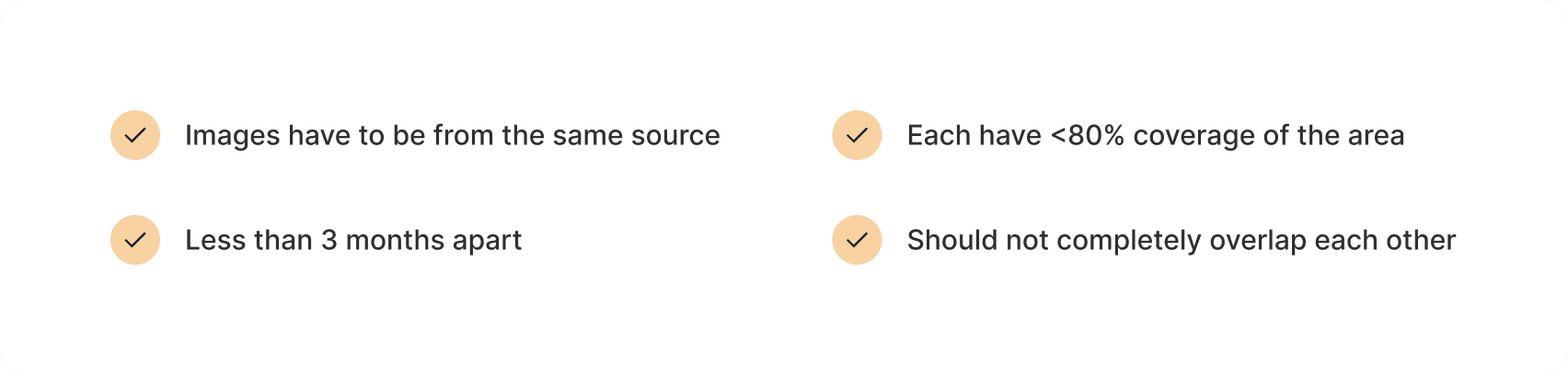
There are three possible scenarios that the user would want to choose from in this workflow:
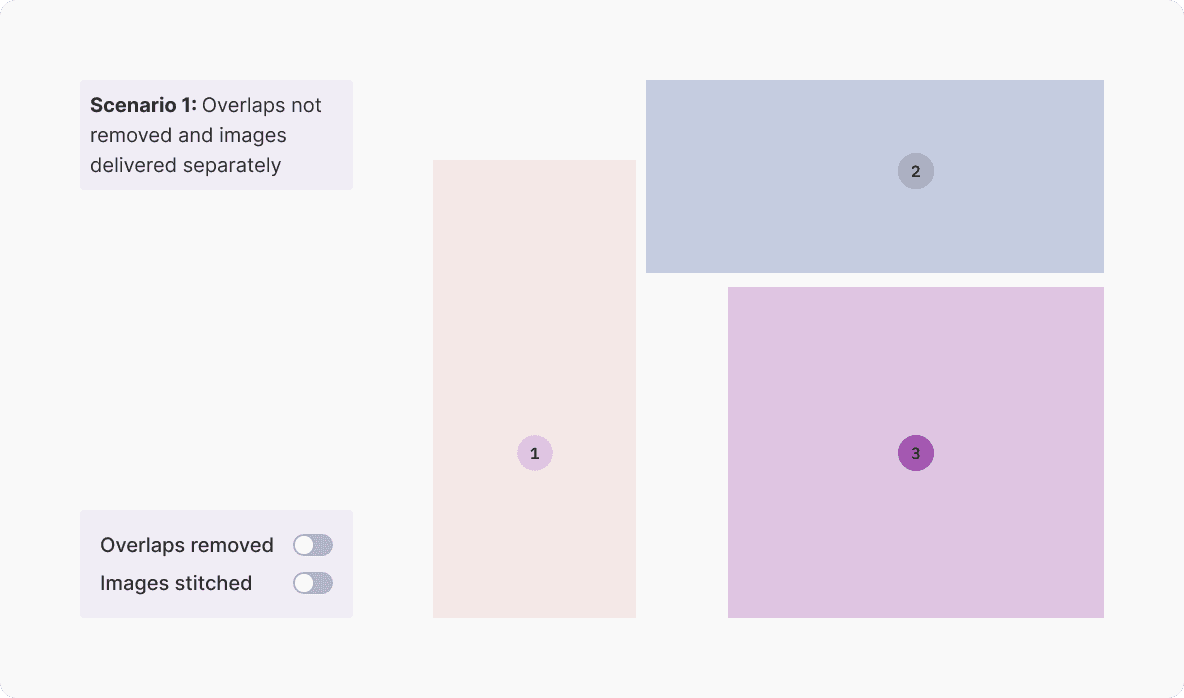
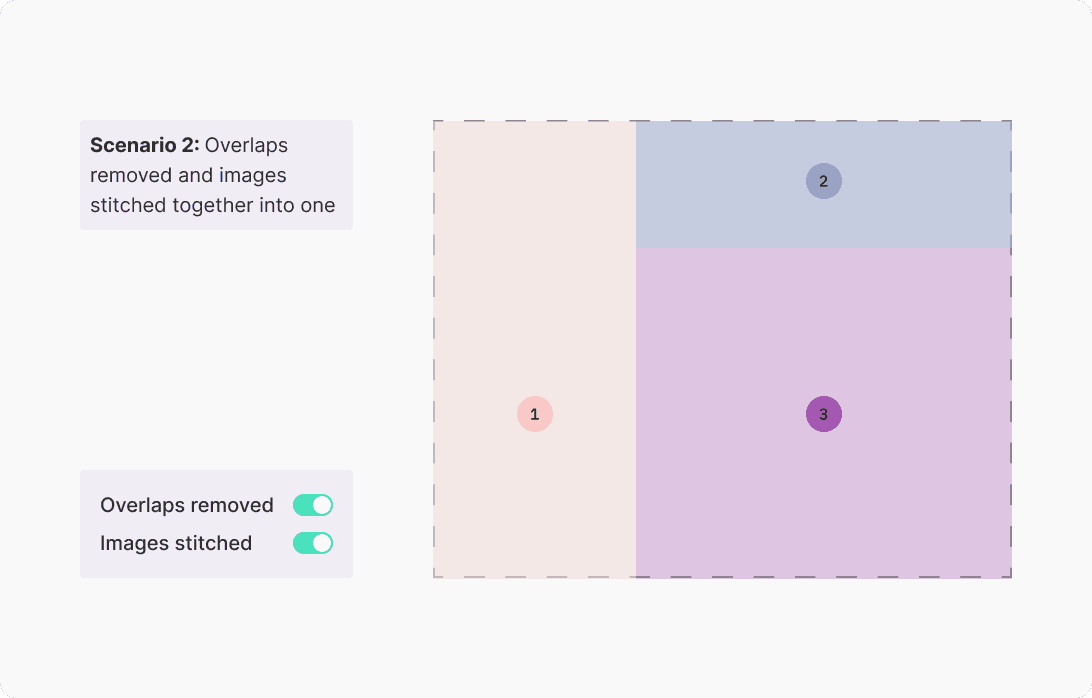
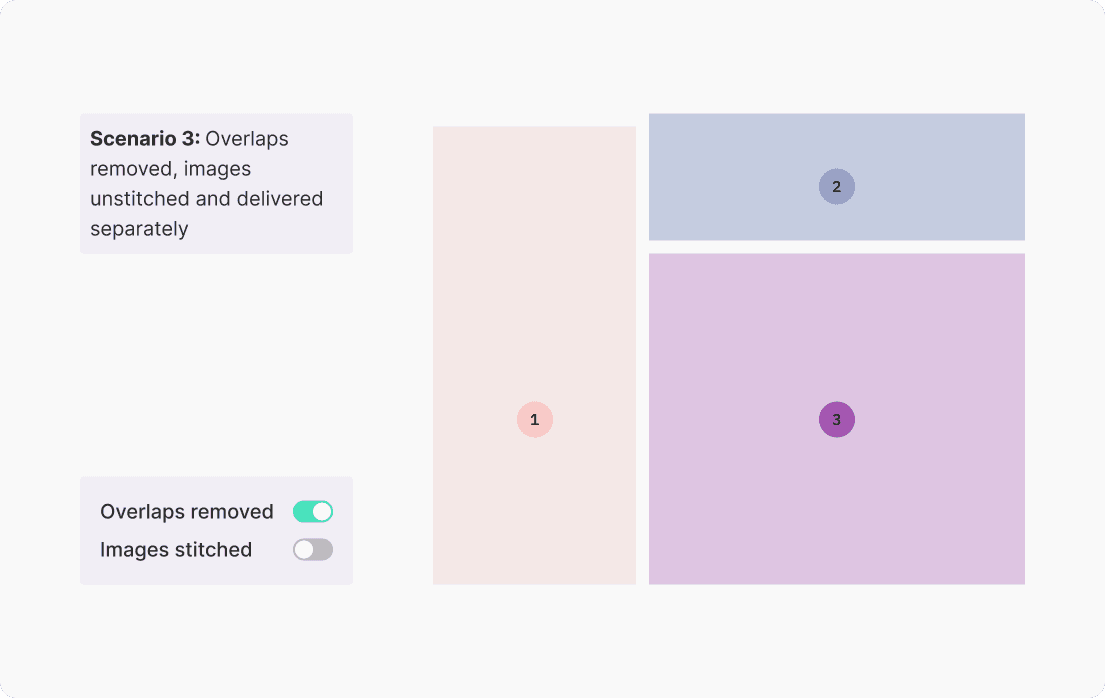
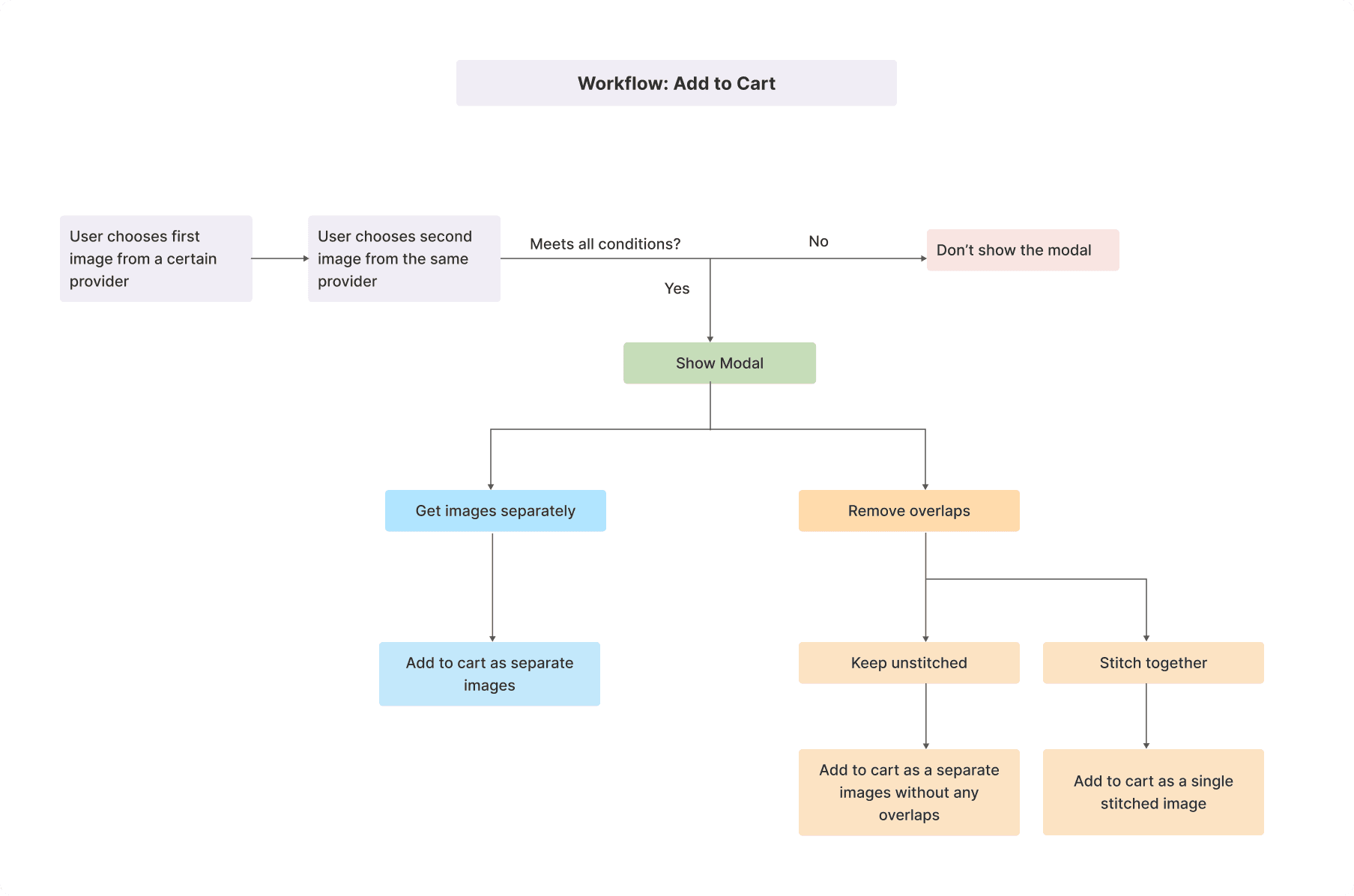
Based on the three scenarios outlined above, the first iteration of the Add to Cart flow looked like this:
First Iteration
Smart Multi-Image Ordering with User-Driven Control
STEP 1
Users enter the location they want to buy imagery for.
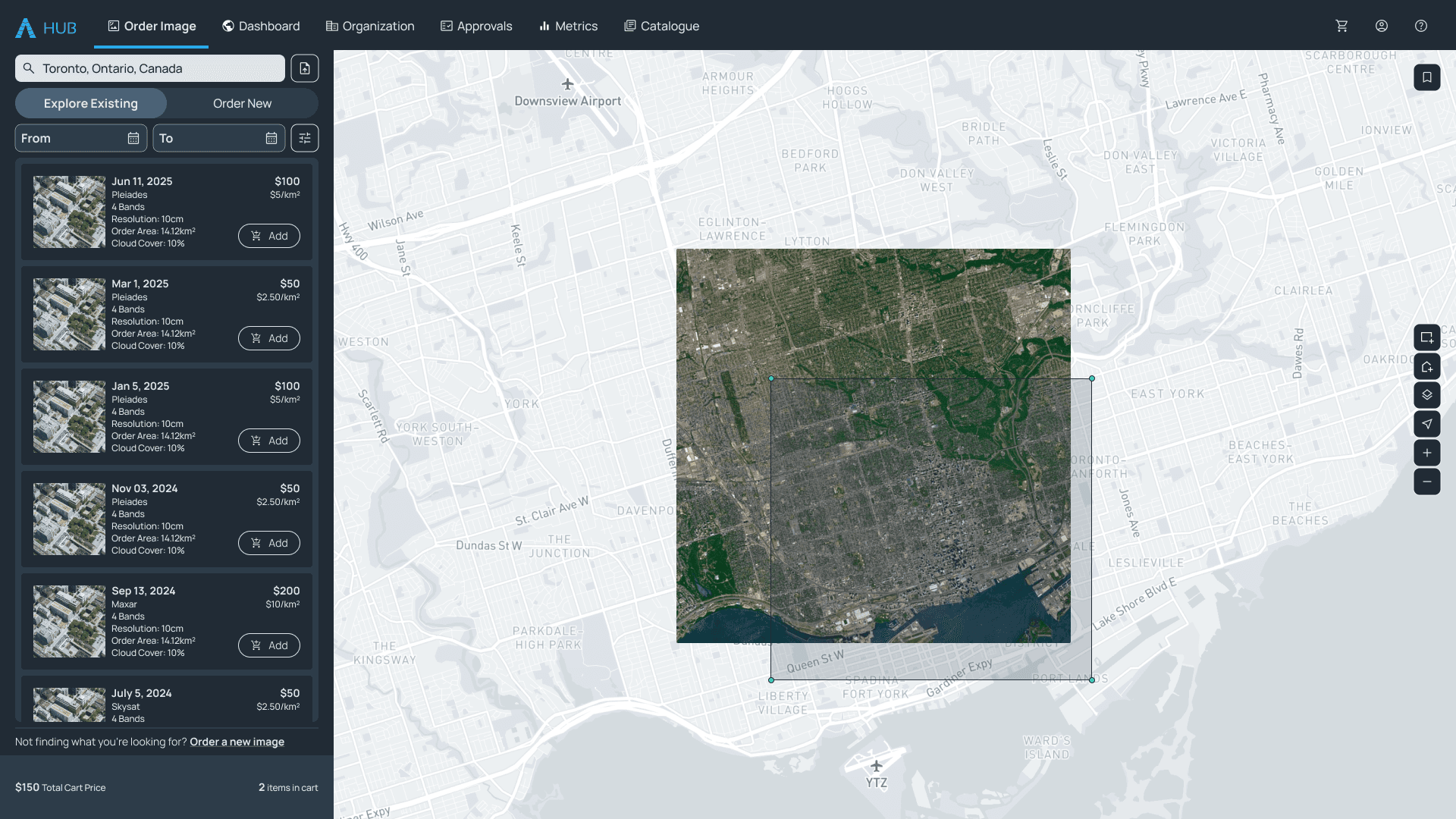

STEP 2
User chooses the first image from the list that meets their criteria.
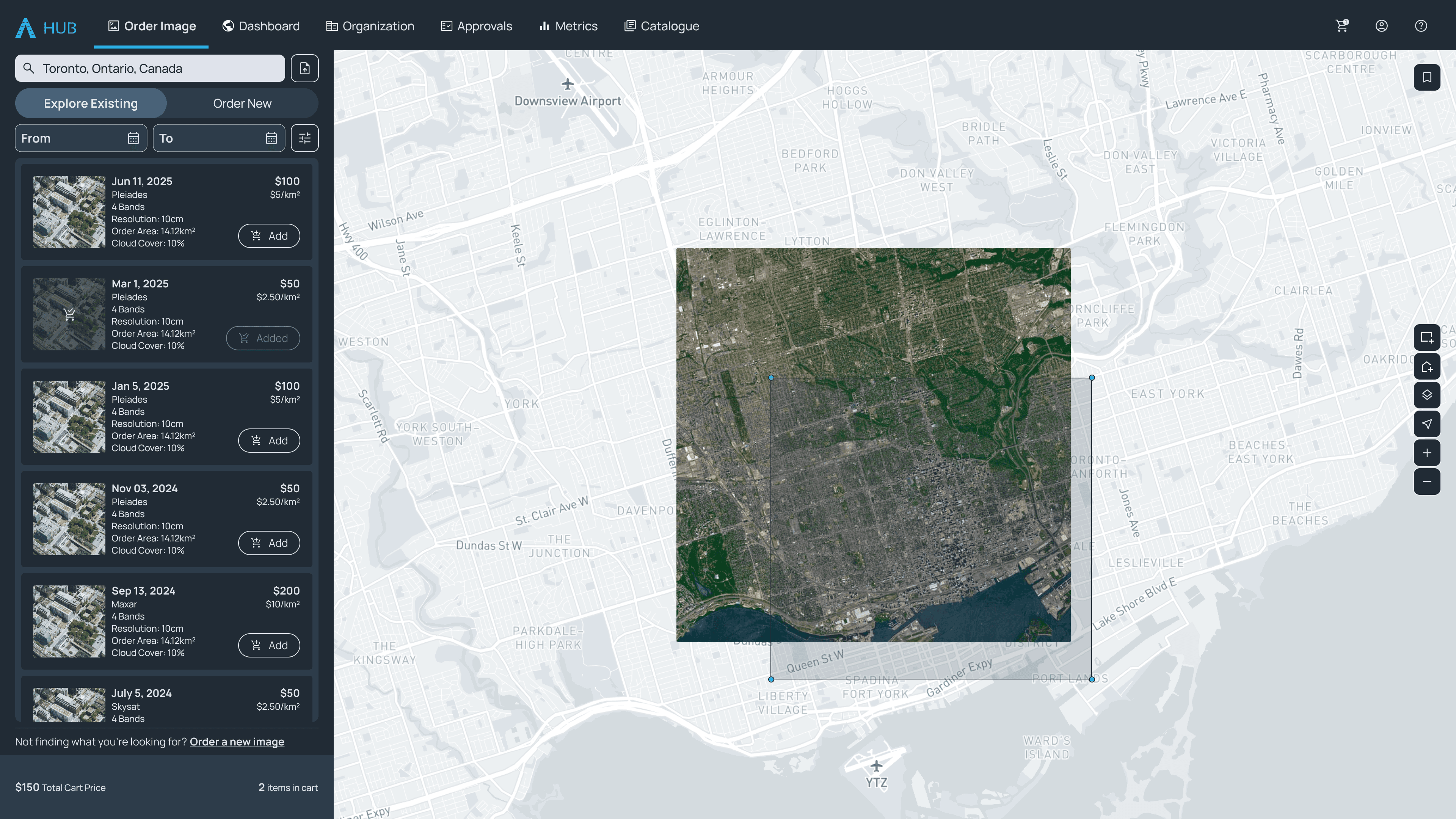
STEP 3
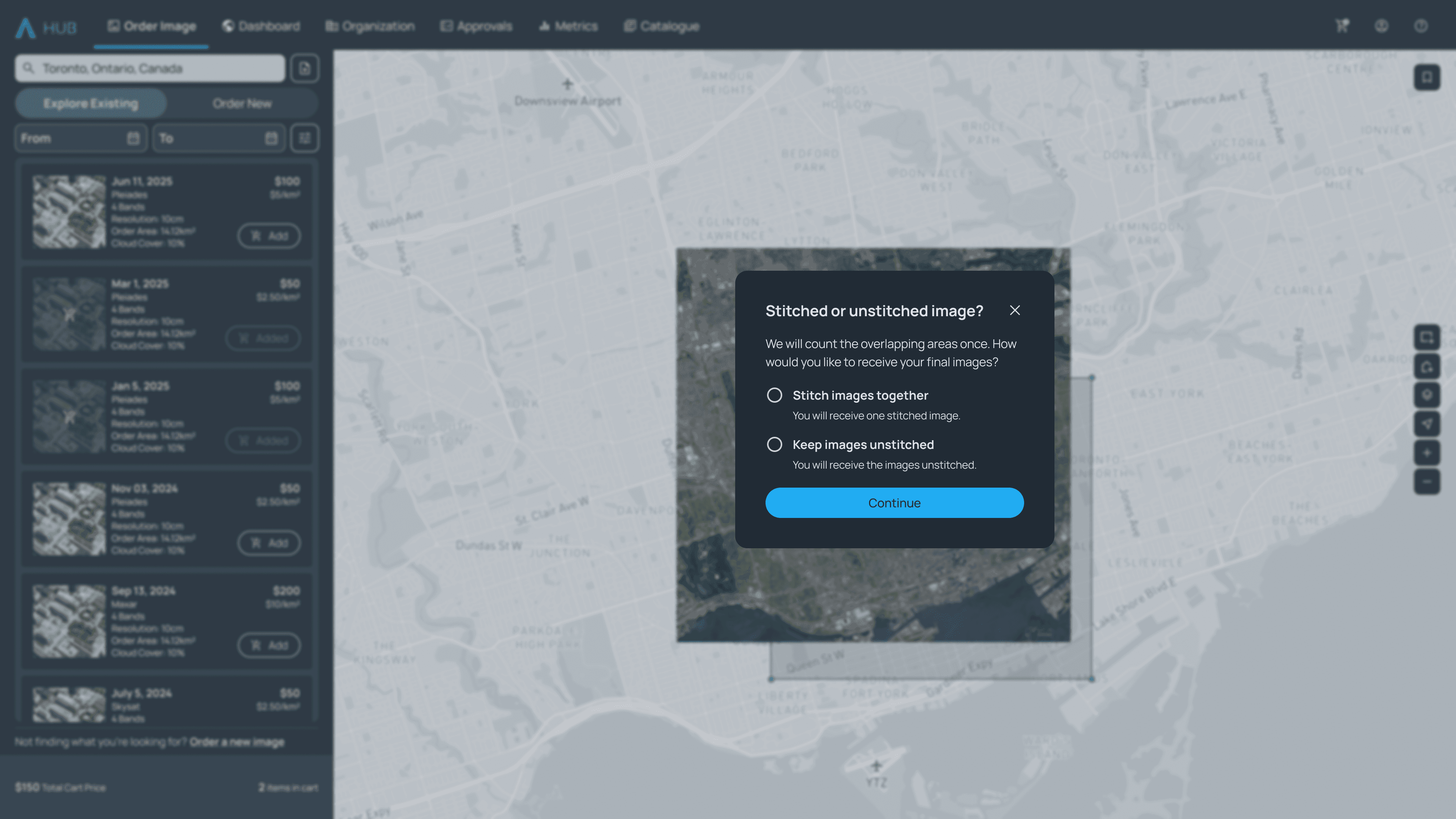
User chooses the second image from the list. The backend checks if both the images meet the technical constraints and proceeds to show the modal if the conditions are met.
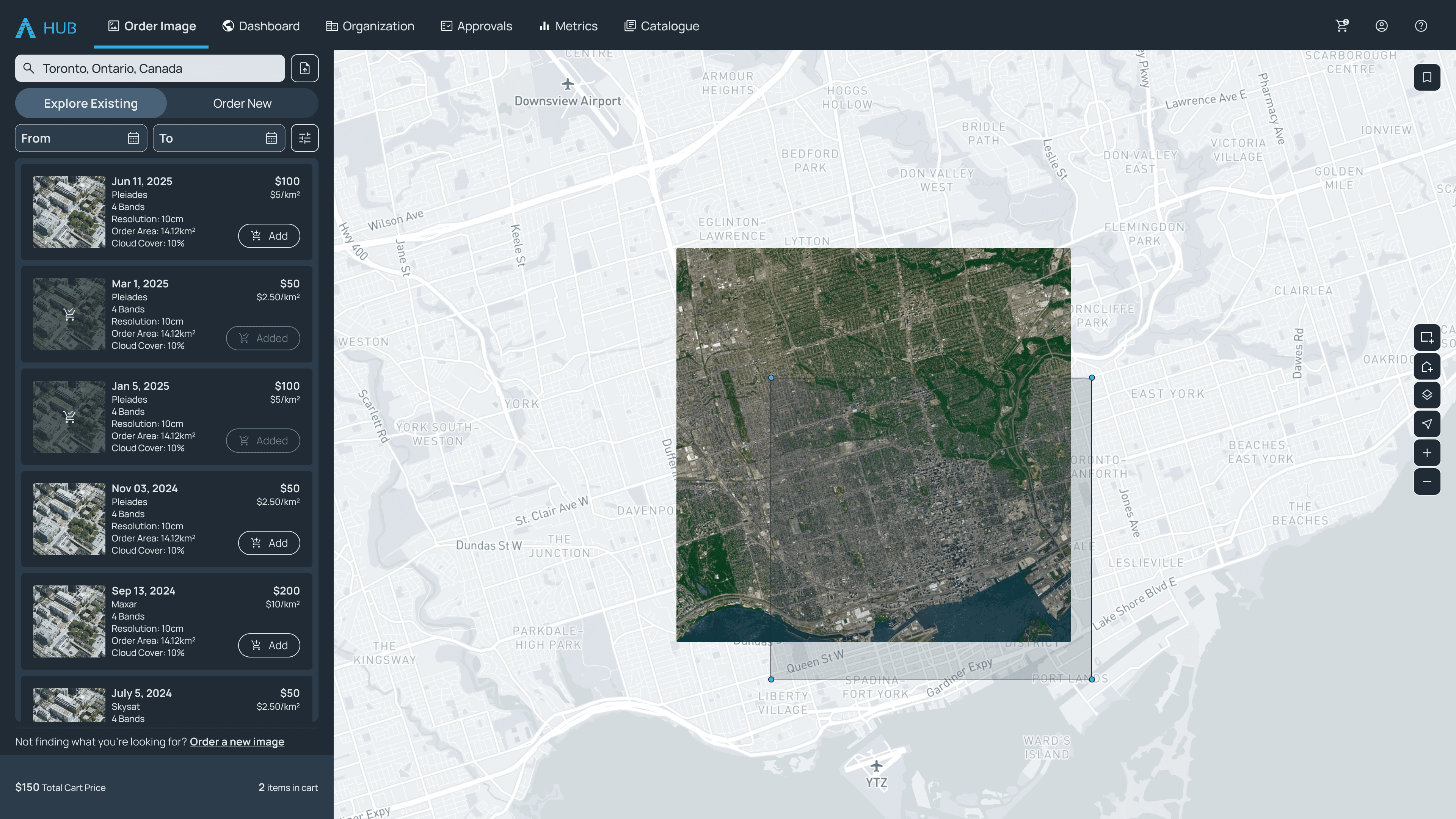
STEP 4
A pop-up allows user to choose whether they want to remove the duplicate overlaps or just add images as individual products
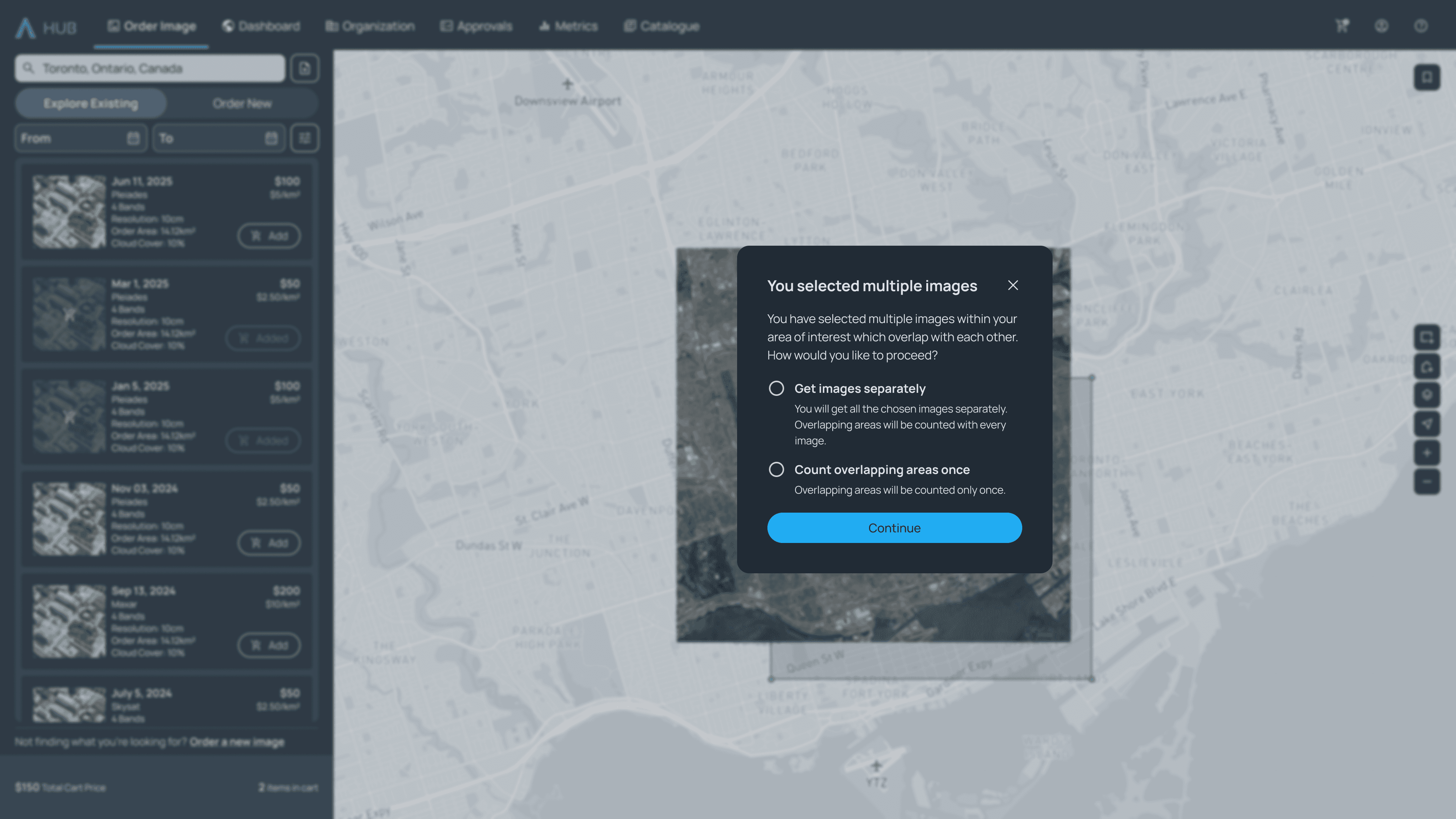
STEP 5
If the user chooses to remove duplicate overlaps, they are asked if they want the images stitched together or separate.
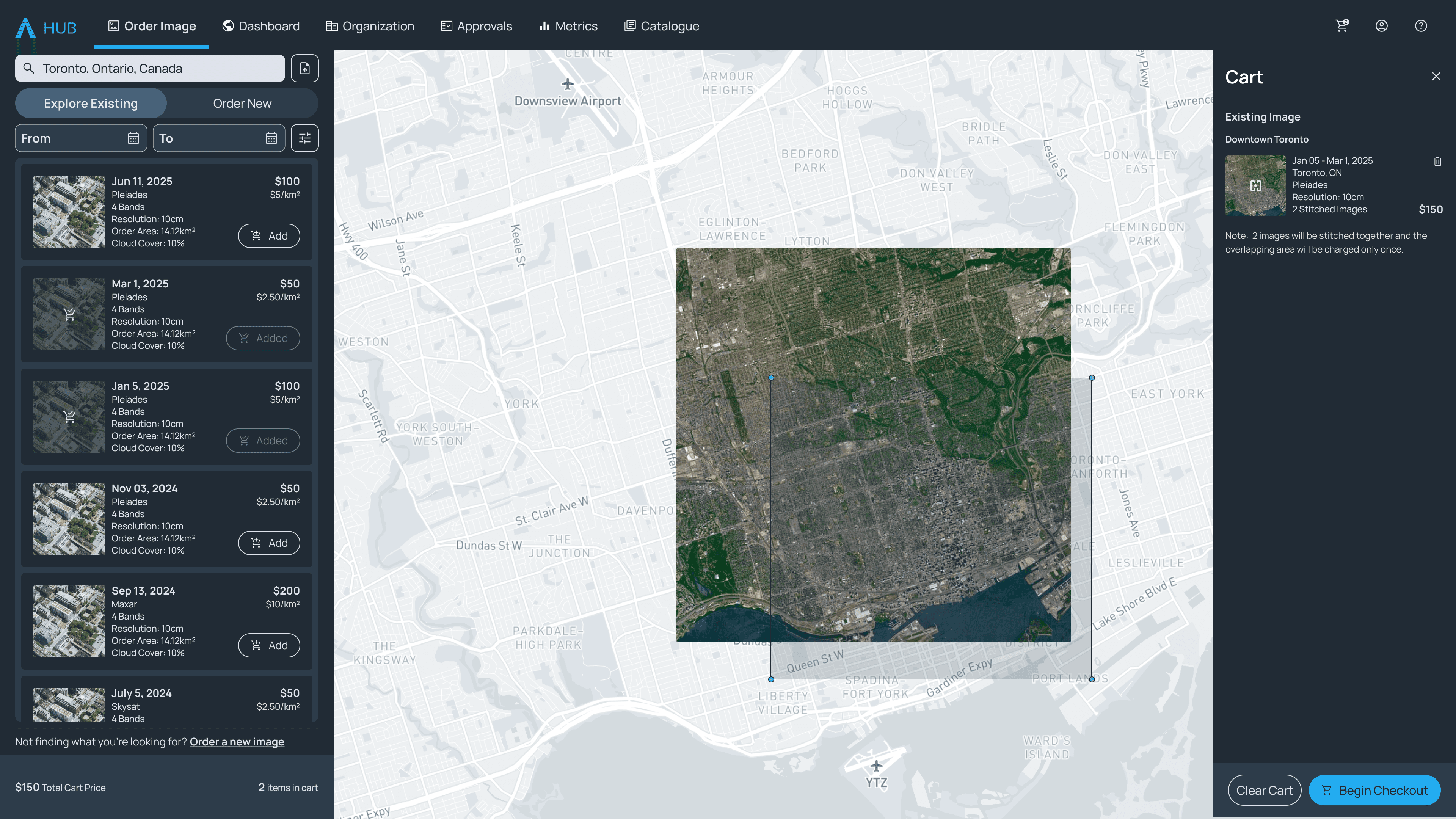
STEP 6
The images get added to the cart based on the user's selection
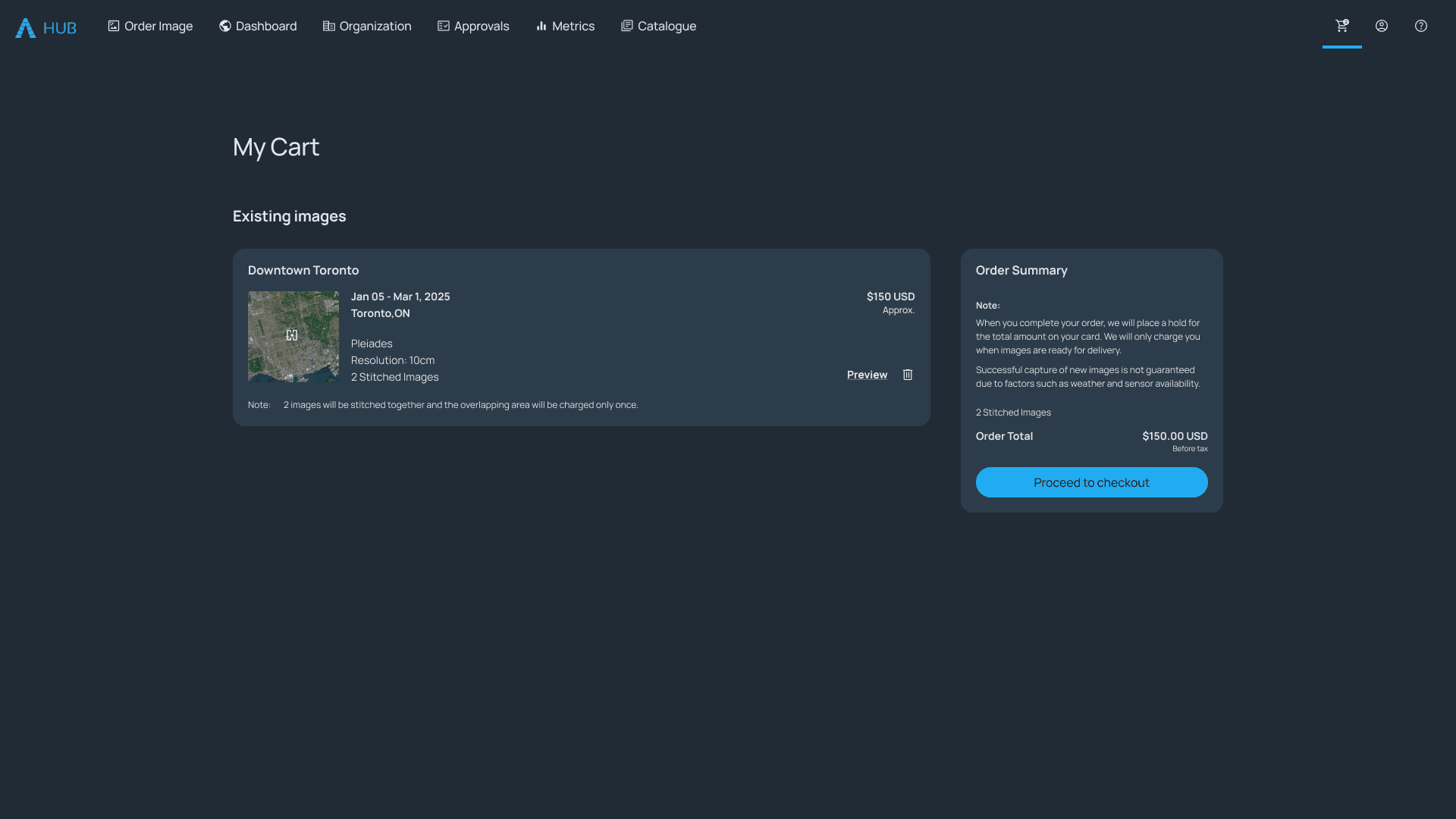
STEP 7
The user can see all the relevant details about the images and the details of how they will be delivered before the checkout.
STEP 1
Users enter the location they want to buy imagery for.
STEP 2
User chooses the first image from the list that meets their criteria.
STEP 3
User chooses the second image from the list. The backend checks if both the images meet the technical constraints and proceeds to show the modal if the conditions are met.
STEP 4
A pop-up allows user to choose whether they want to remove the duplicate overlaps or just add images as individual products
STEP 5
If the user chooses to remove duplicate overlaps, they are asked if they want the images stitched together or separate.
STEP 6
The images get added to the cart based on the user's selection
STEP 7
The user can see all the relevant details about the images and the details of how they will be delivered before the checkout.
STEP 1
Users enter the location they want to buy imagery for.
STEP 2
User chooses the first image from the list that meets their criteria.
STEP 3
User chooses the second image from the list. The backend checks if both the images meet the technical constraints and proceeds to show the modal if the conditions are met.
STEP 4
A pop-up allows user to choose whether they want to remove the duplicate overlaps or just add images as individual products
STEP 5
If the user chooses to remove duplicate overlaps, they are asked if they want the images stitched together or separate.
STEP 6
The images get added to the cart based on the user's selection
STEP 7
The user can see all the relevant details about the images and the details of how they will be delivered before the checkout.
STEP 1
Users enter the location they want to buy imagery for.
STEP 2
User chooses the first image from the list that meets their criteria.
STEP 3
User chooses the second image from the list. The backend checks if both the images meet the technical constraints and proceeds to show the modal if the conditions are met.
STEP 4
A pop-up allows user to choose whether they want to remove the duplicate overlaps or just add images as individual products
STEP 5
If the user chooses to remove duplicate overlaps, they are asked if they want the images stitched together or separate.
STEP 6
The images get added to the cart based on the user's selection
STEP 7
The user can see all the relevant details about the images and the details of how they will be delivered before the checkout.
Learnings
Unclear Triggers and Rigid Ordering Workflow
Unclear Triggers and Rigid Ordering Workflow
Unclear Triggers and Rigid Ordering Workflow
The users could not intentionally trigger the flow as they didn’t know how it is triggered
All the choices were required to be made before adding an item to the cart. i.e. Whether the user wants the image stitched or unstitched needs to be selected upfront
The modal would pop-up when it was not intended and obstruct the user’s flow.
The order could not be modified after adding it to the cart. One could only delete the existing order and add it against which was wasted effort for the user.
Second Iteration
Simplified Workflow and Enhanced User Control
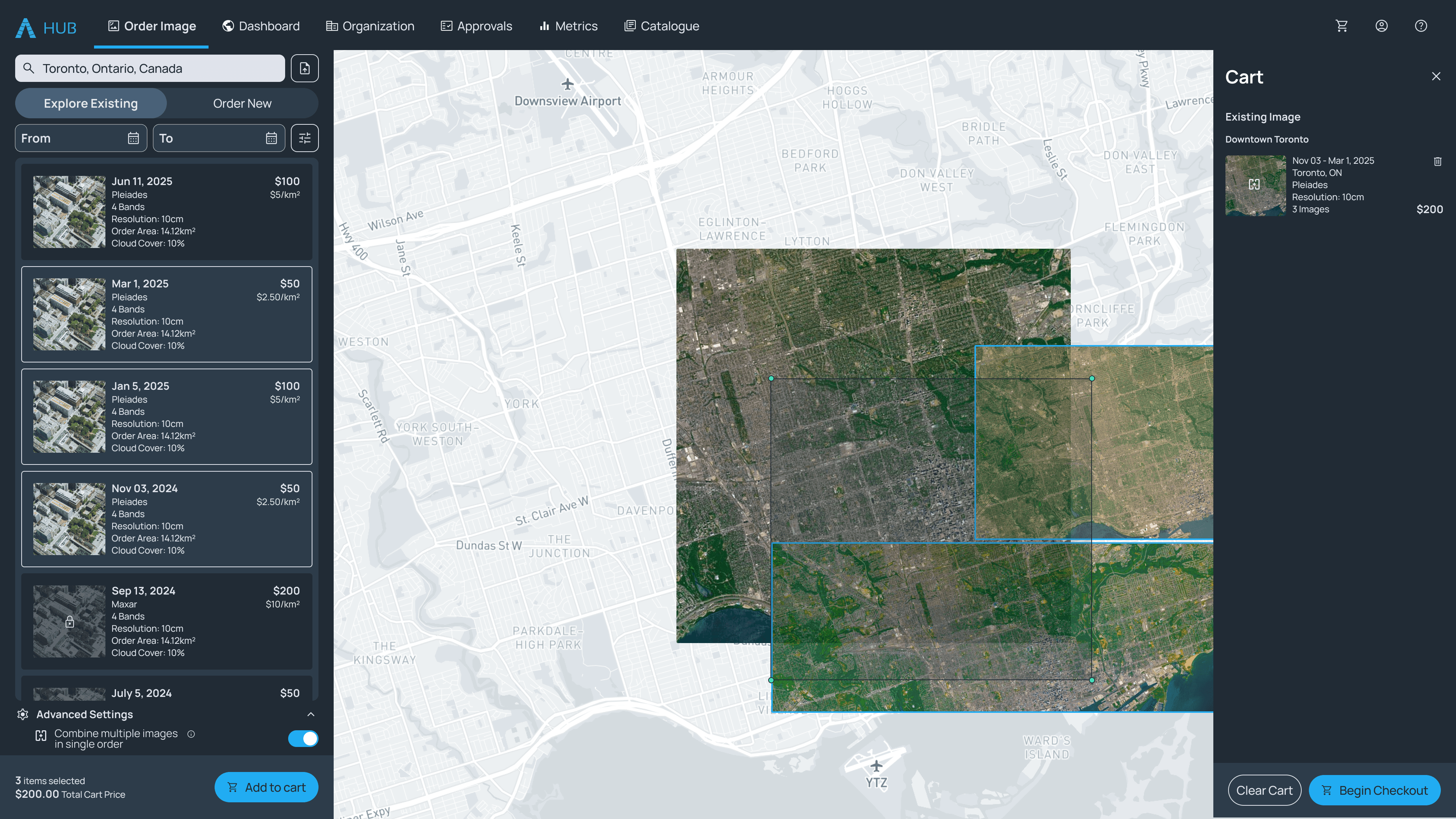
Based on the learnings from the previous iteration, the workflow was simplified even further and the shortcomings were addressed. The second iteration of the Add to Cart Flow allowed users to intentionally opt in to this workflow and provided greater flexibility in making changes to the order even at a later stage.
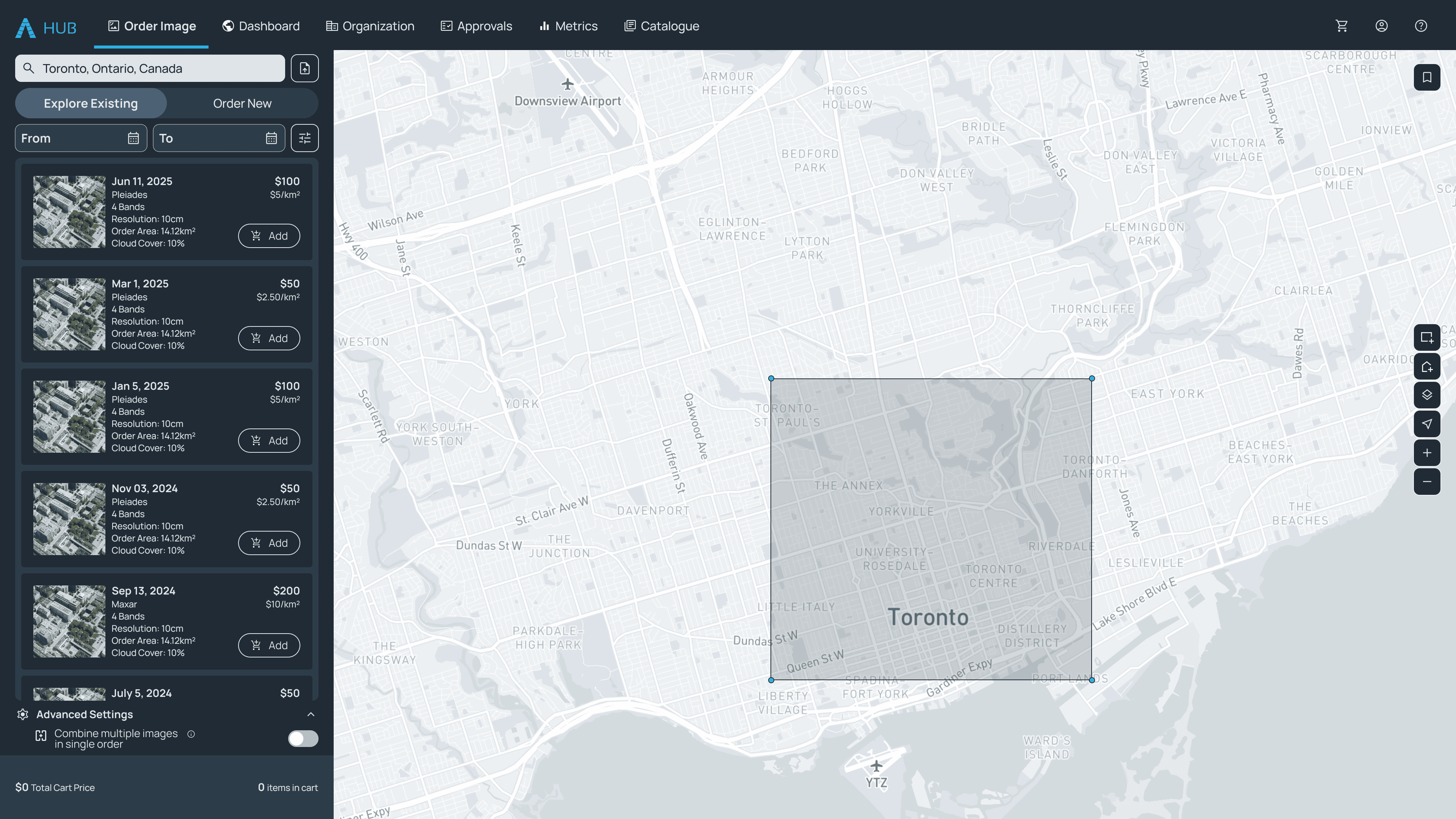
Allowing the users to intentionally choose turn on the multi-product mode through a toggle
Clearly indicating which images are locked and why or have already been added to the cart when the user hovers over them.
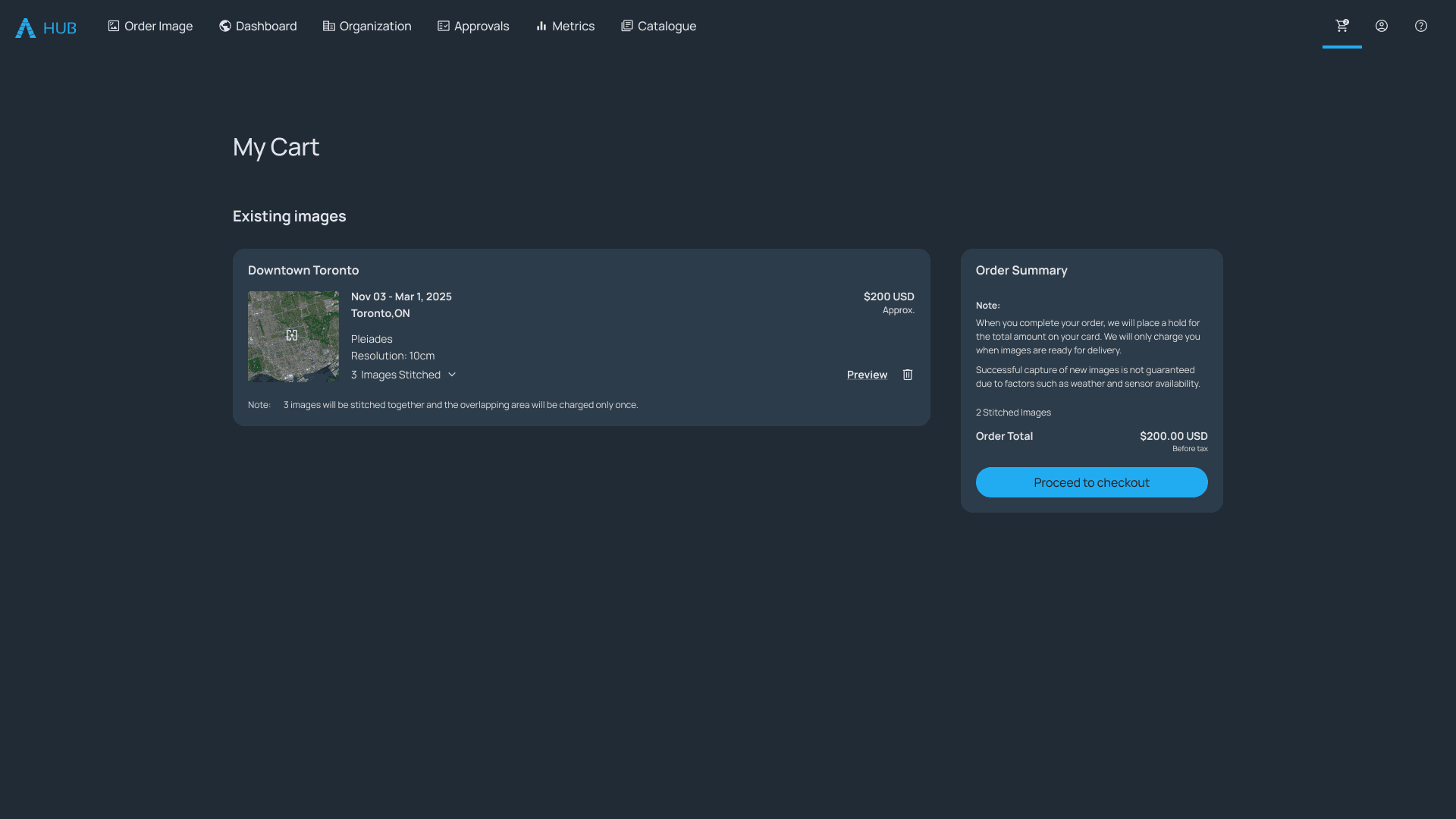
Simplified the process by reducing the number of decisions the user has to make before adding the items to the cart reducing the cognitive load on the user. i.e. The mosaicking method could now easily be changed later in the cart.
The individual components of the multi-product order could be modified or deleted.
Handling the non-happy paths and edges cases in a more streamlined manner.

STEP 1
The second iteration allowed the users to intentionally switch to the multi-product mode through a toggle.
STEP 2
Clearly indicating to the user what to expect and how to navigate the steps ahead.
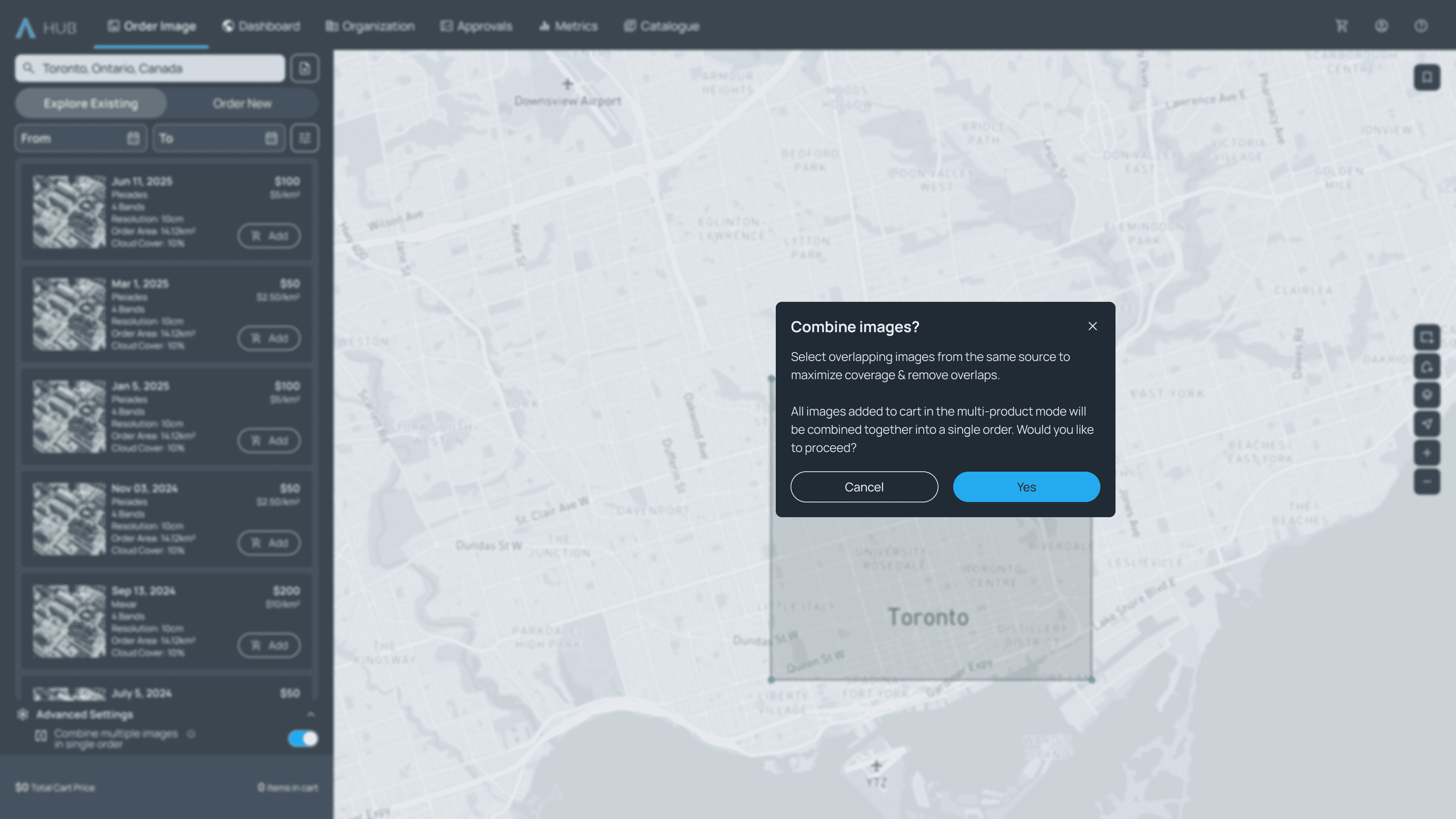
STEP 3
The user can choose an image over their desired location.
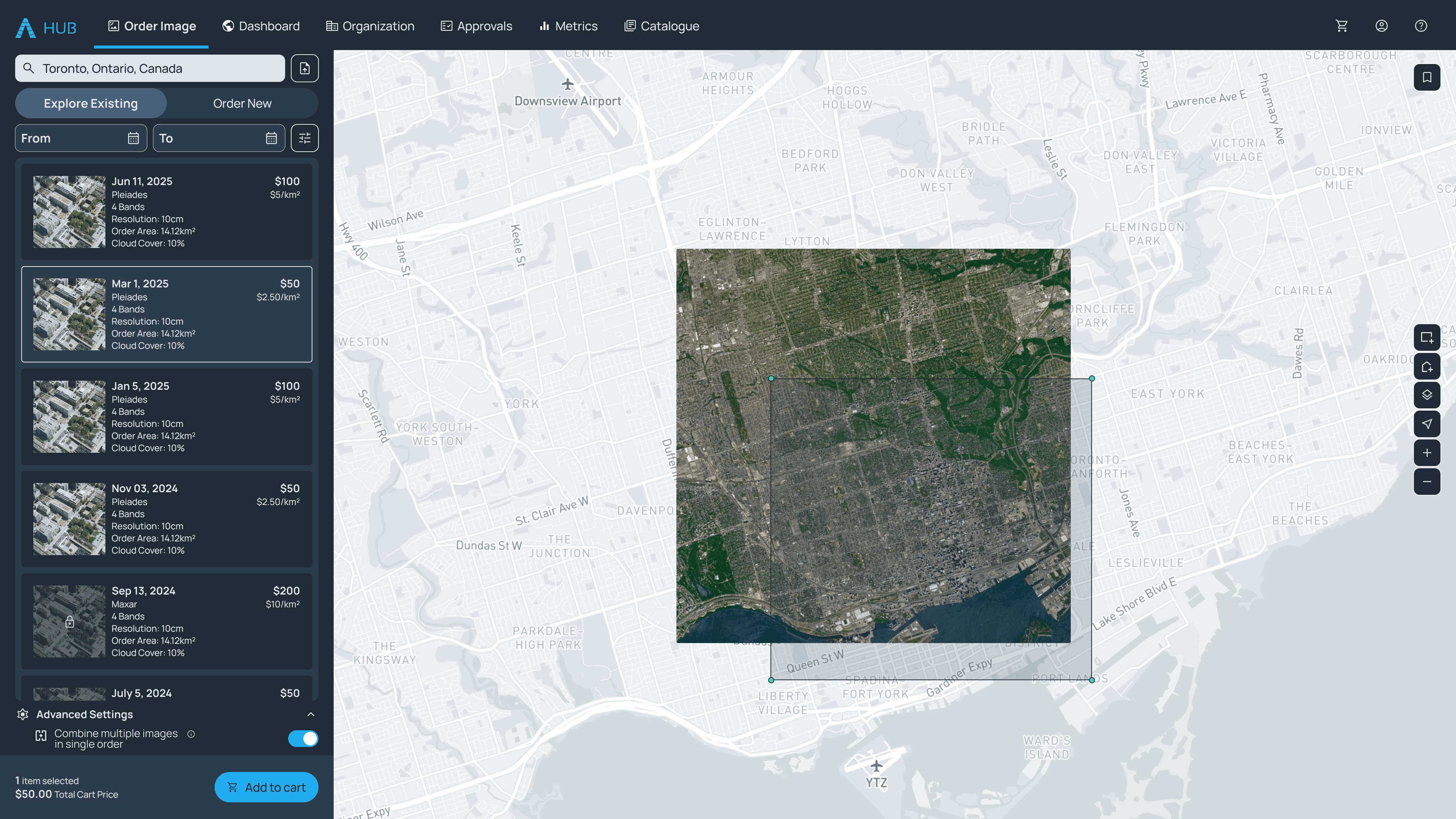
Multi product Flow
The user can select multiple images from the same source and add them to the cart and decide whether they would like the images stitched or unstitched at a later stage.
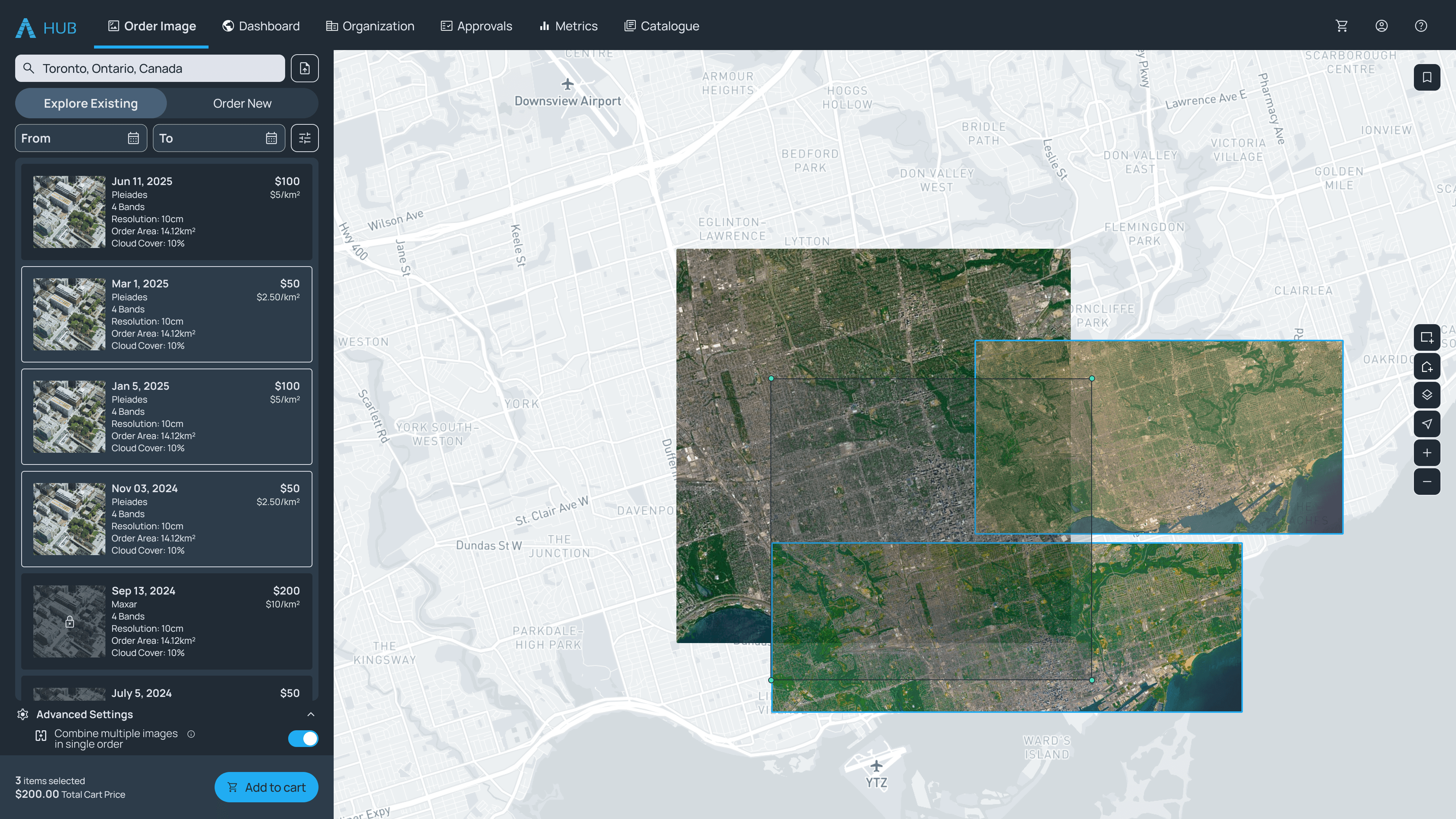
STep 5
The process was simplified by reducing the number of decisions the user has to make before adding the items to the cart reducing the cognitive load on the user.
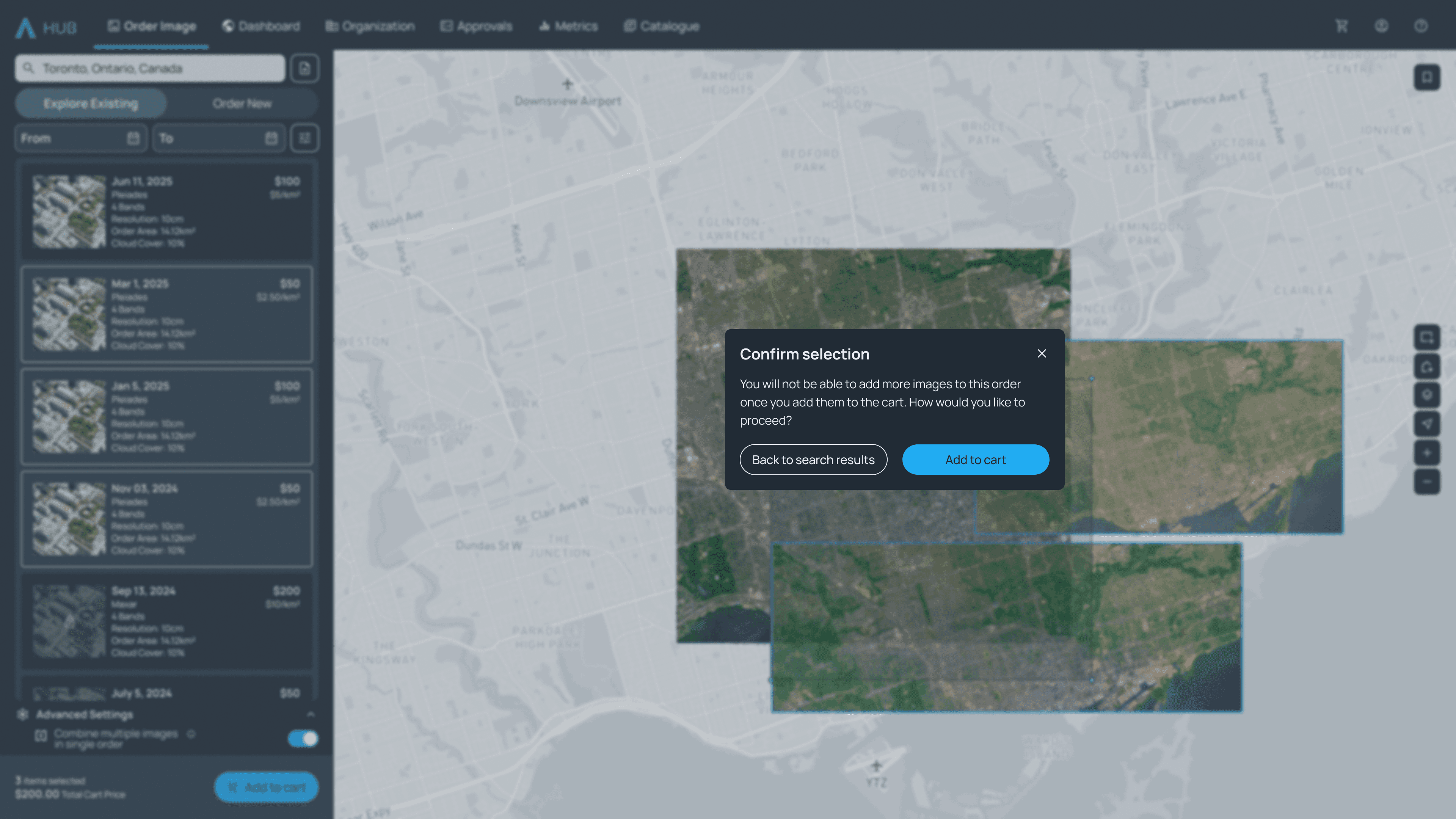
STEP 6
The process was simplified by reducing the number of decisions the user has to make before adding the items to the cart reducing the cognitive load on the user.
STEP 7
The mosaicking method could now easily be changed later in the cart. Also, handled the non-happy paths and edges cases in a more streamlined manner.
STEP 1
The second iteration allowed the users to intentionally switch to the multi-product mode through a toggle.
STEP 2
Clearly indicating to the user what to expect and how to navigate the steps ahead.
STEP 3
The user can choose an image over their desired location.
Multi product Flow
The user can select multiple images from the same source and add them to the cart and decide whether they would like the images stitched or unstitched at a later stage.
STep 5
The process was simplified by reducing the number of decisions the user has to make before adding the items to the cart reducing the cognitive load on the user.
STEP 6
The process was simplified by reducing the number of decisions the user has to make before adding the items to the cart reducing the cognitive load on the user.
STEP 7
The mosaicking method could now easily be changed later in the cart. Also, handled the non-happy paths and edges cases in a more streamlined manner.
STEP 1
The second iteration allowed the users to intentionally switch to the multi-product mode through a toggle.
STEP 2
Clearly indicating to the user what to expect and how to navigate the steps ahead.
STEP 3
The user can choose an image over their desired location.
Multi product Flow
The user can select multiple images from the same source and add them to the cart and decide whether they would like the images stitched or unstitched at a later stage.
STep 5
The process was simplified by reducing the number of decisions the user has to make before adding the items to the cart reducing the cognitive load on the user.
STEP 6
The process was simplified by reducing the number of decisions the user has to make before adding the items to the cart reducing the cognitive load on the user.
STEP 7
The mosaicking method could now easily be changed later in the cart. Also, handled the non-happy paths and edges cases in a more streamlined manner.
STEP 1
The second iteration allowed the users to intentionally switch to the multi-product mode through a toggle.
STEP 2
Clearly indicating to the user what to expect and how to navigate the steps ahead.
STEP 3
The user can choose an image over their desired location.
Multi product Flow
The user can select multiple images from the same source and add them to the cart and decide whether they would like the images stitched or unstitched at a later stage.
STep 5
The process was simplified by reducing the number of decisions the user has to make before adding the items to the cart reducing the cognitive load on the user.
STEP 6
The process was simplified by reducing the number of decisions the user has to make before adding the items to the cart reducing the cognitive load on the user.
STEP 7
The mosaicking method could now easily be changed later in the cart. Also, handled the non-happy paths and edges cases in a more streamlined manner.
Second Iteration
Simplified Workflow and Enhanced User Control
Simplified Workflow and Enhanced User Control
Second Iteration
Simplified Workflow and Enhanced User Control
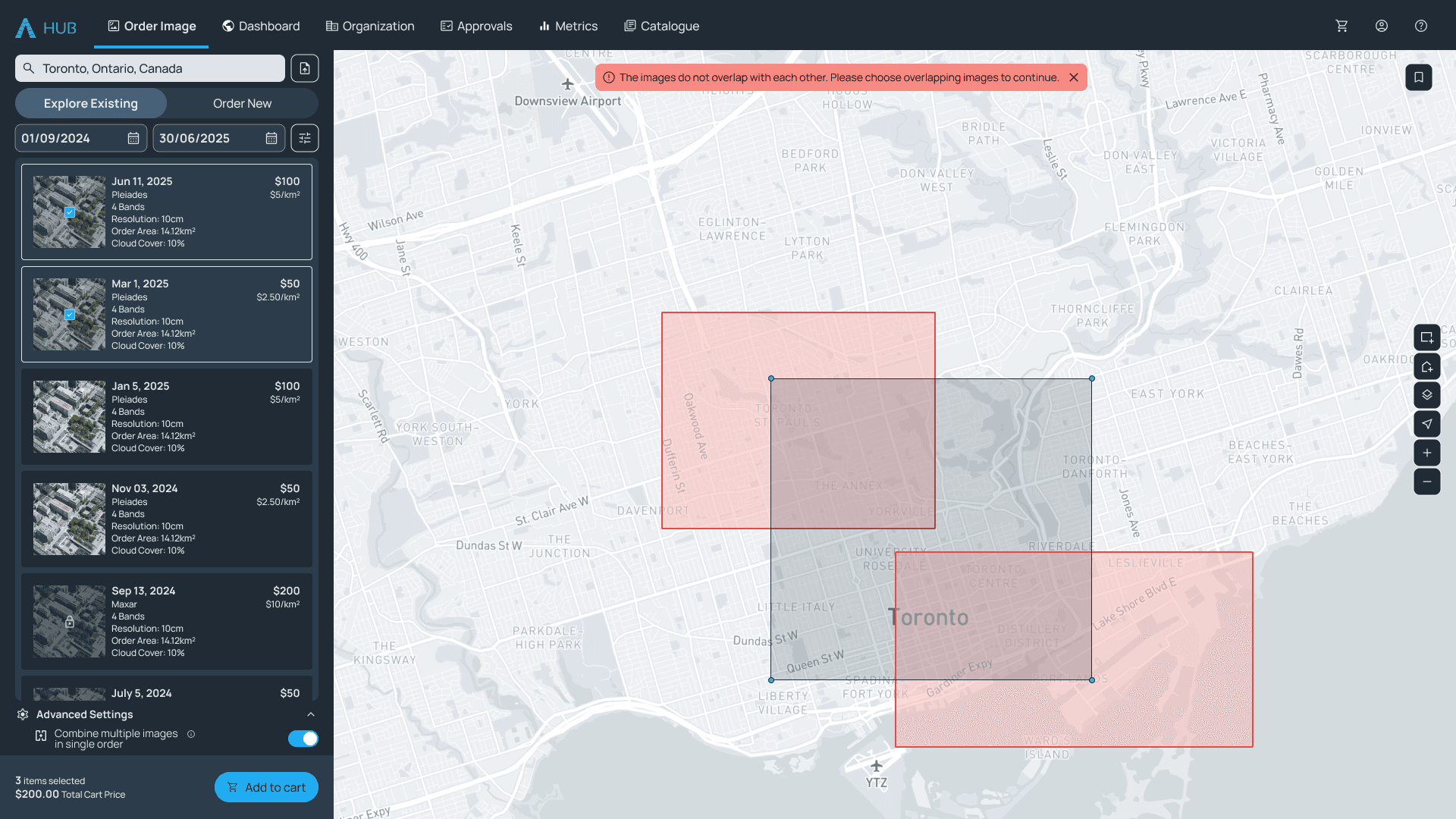
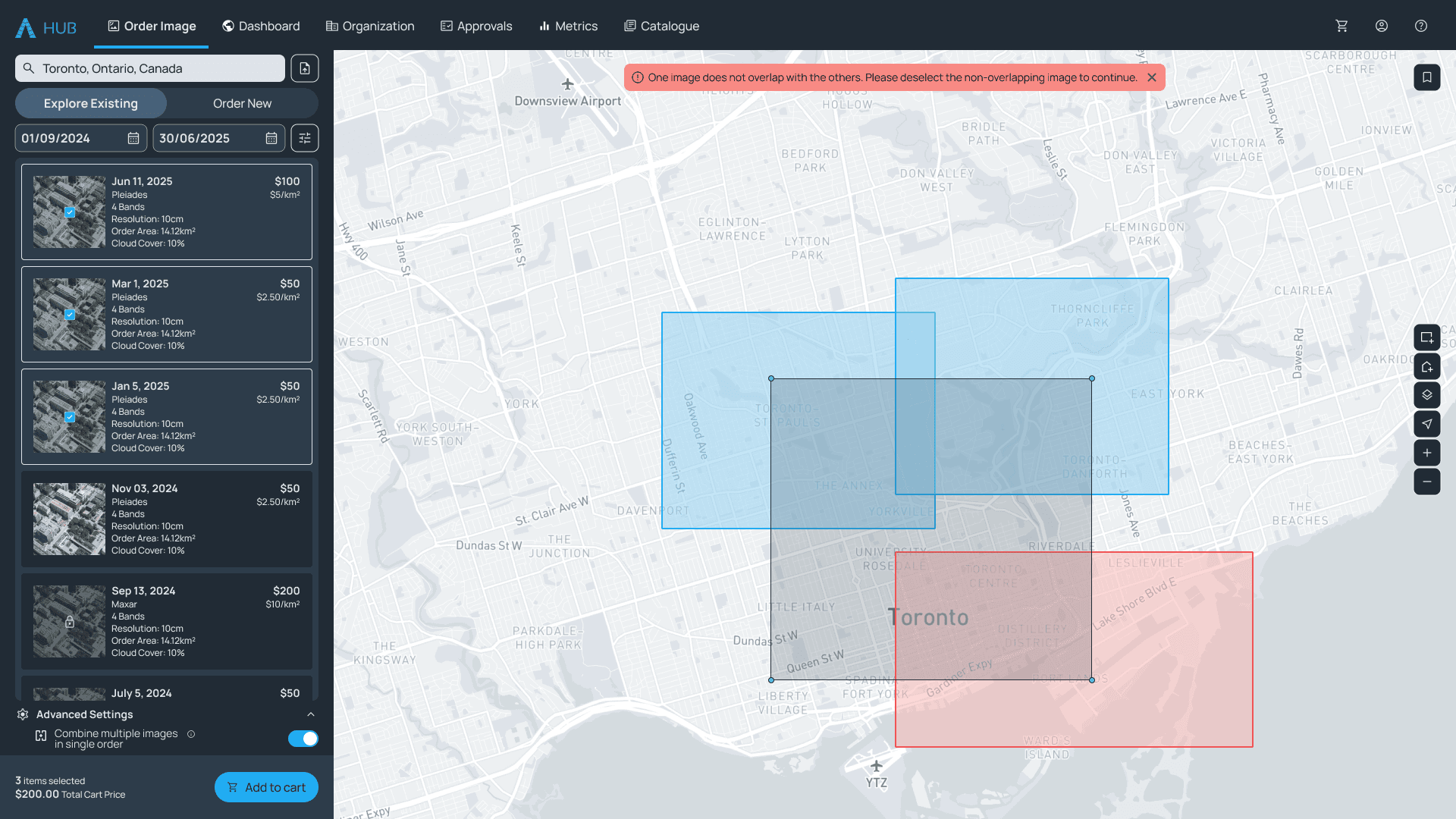
Edge Cases and Error Prevention
Handling edge cases and errors
Handling edge cases and errors
Handling edge cases and errors
Identifying potential errors pre-emptively and designing appropriate solutions for those scenarios.
Product Sneak Peek
Additional product capabilities
Additional product capabilities
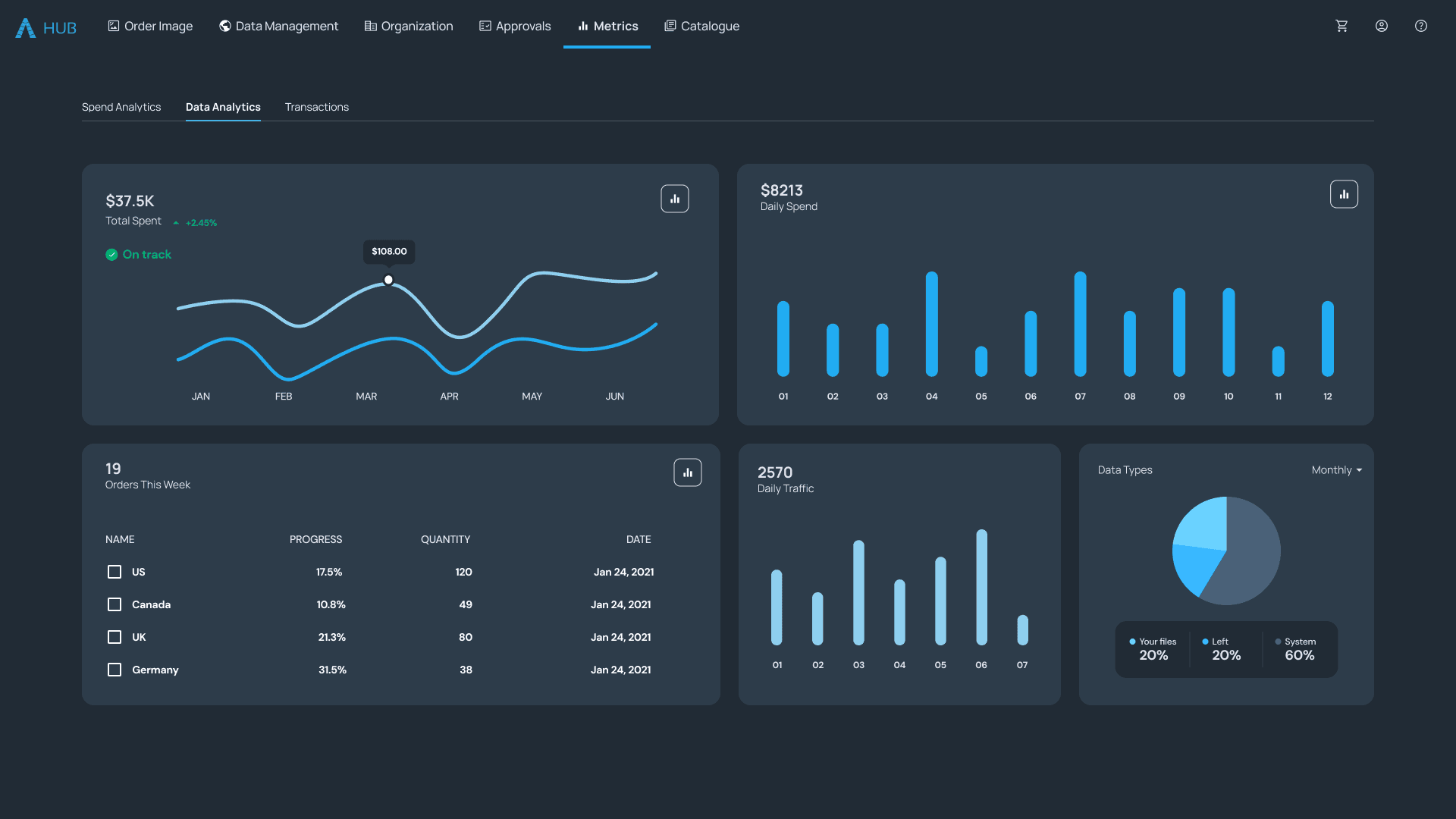
metrics
Allows users to gain insights into spend by month, data source, role, & user and view granular transaction detail for purchases across the organization
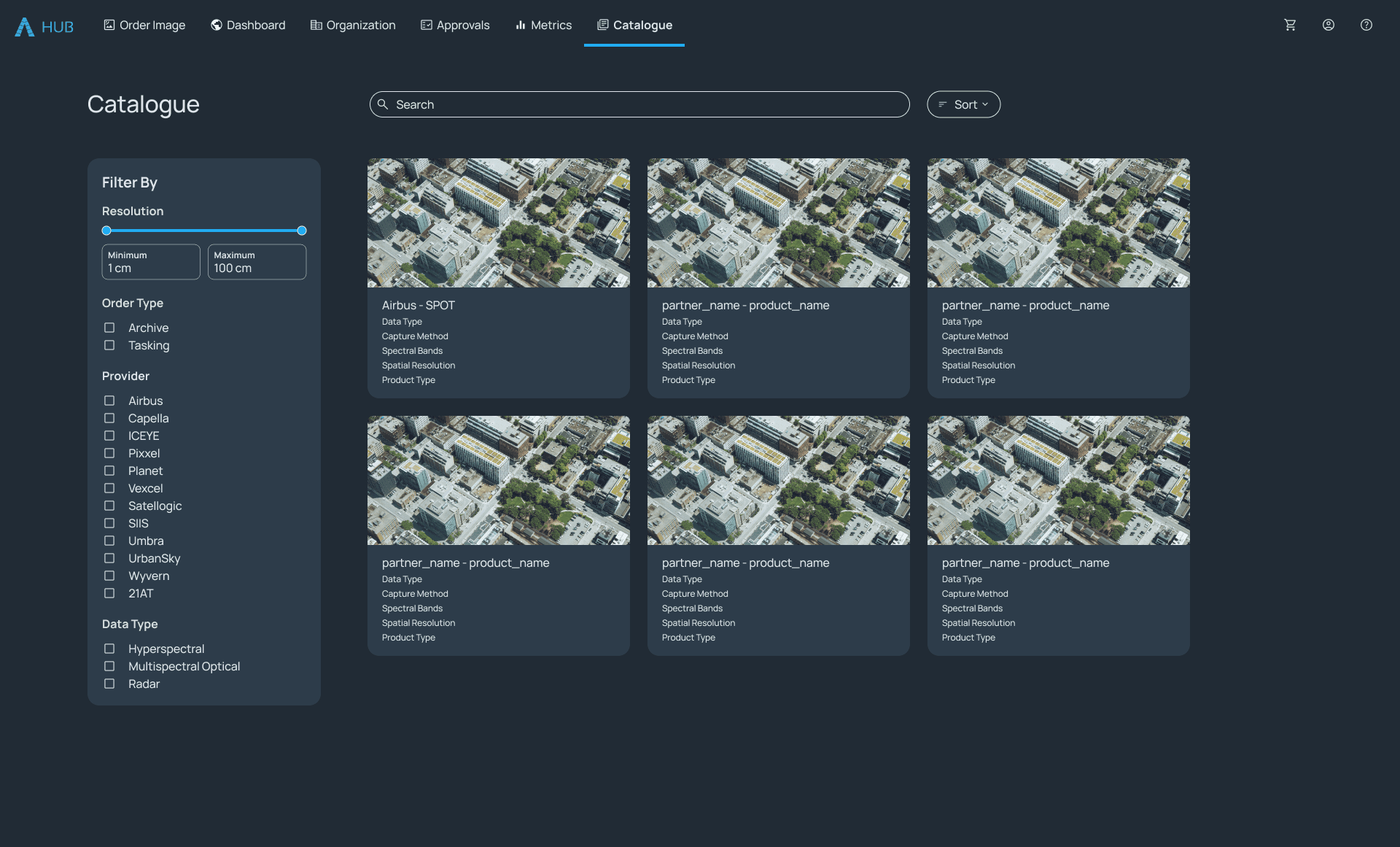
product CATALOGUE
Showcases all data sources with easy to use resolution, order type, provider, sensor type, and product type filters to help users in narrowing down their search.
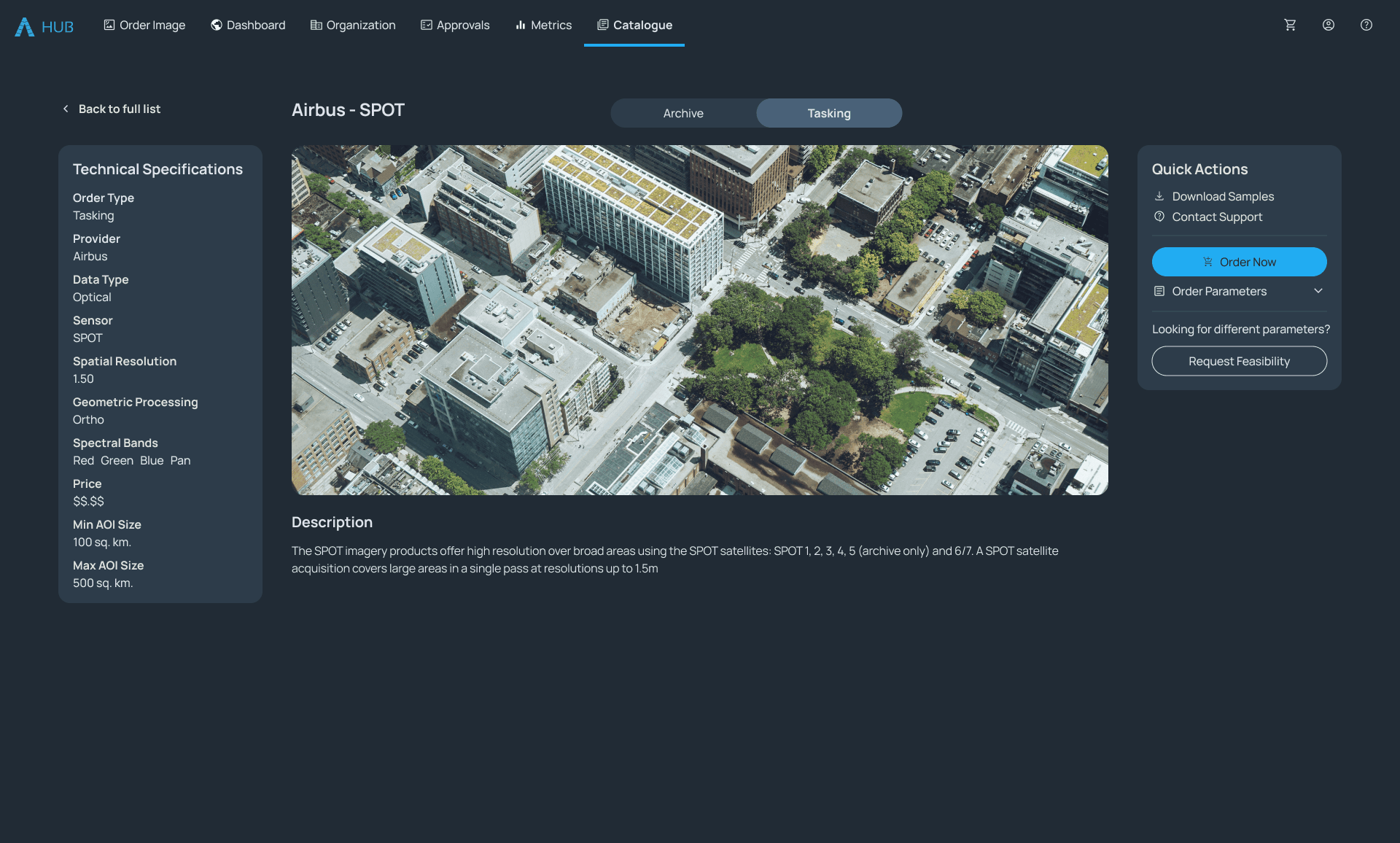
product CATALOGUE
User can click on a Library item to view technical specifications and view and download sample data
Data Management DASHBOARD
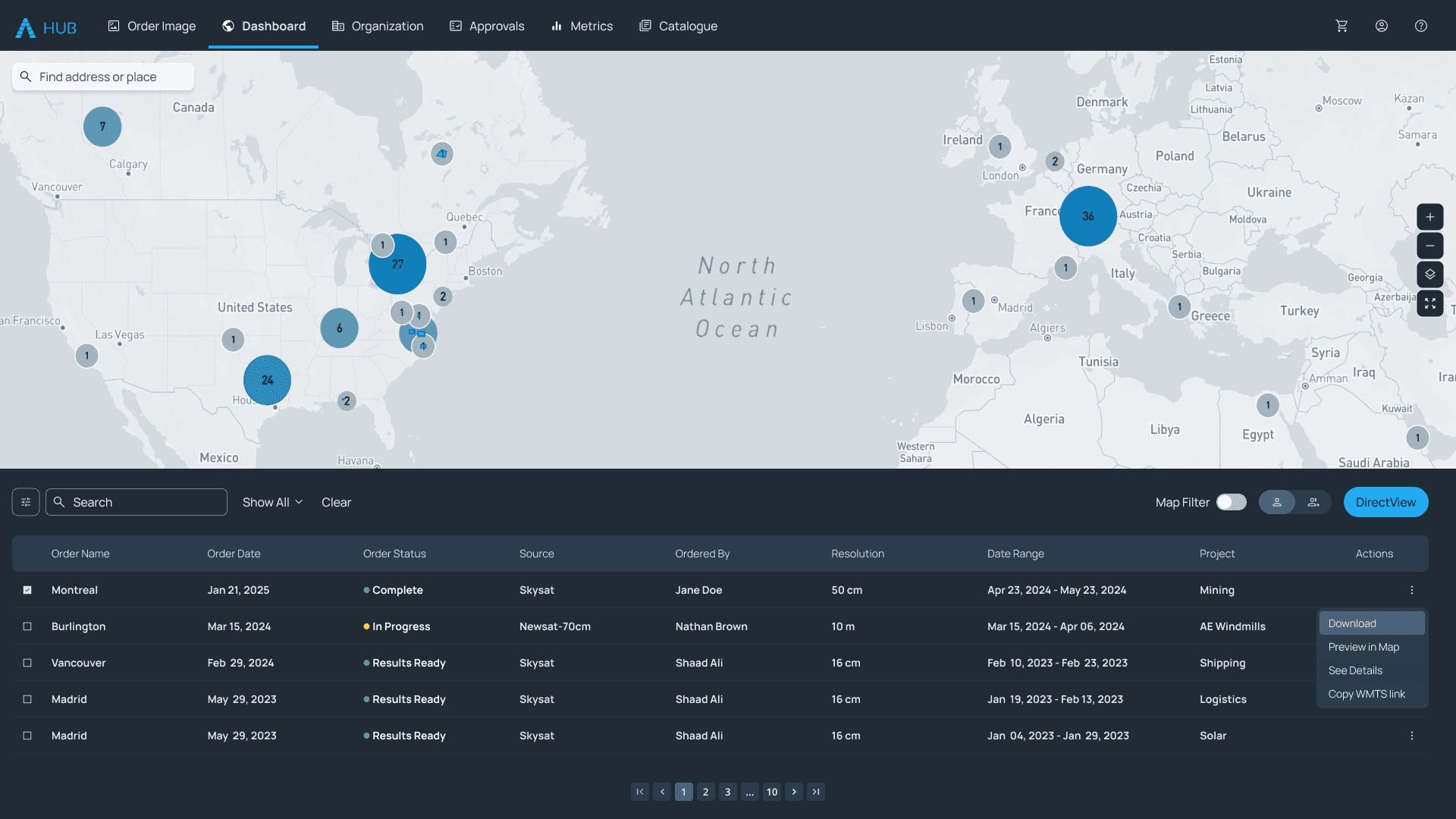
Users can manage the status of their organization's orders, download and share it with their colleagues through a web viewer.
Data Management DASHBOARD
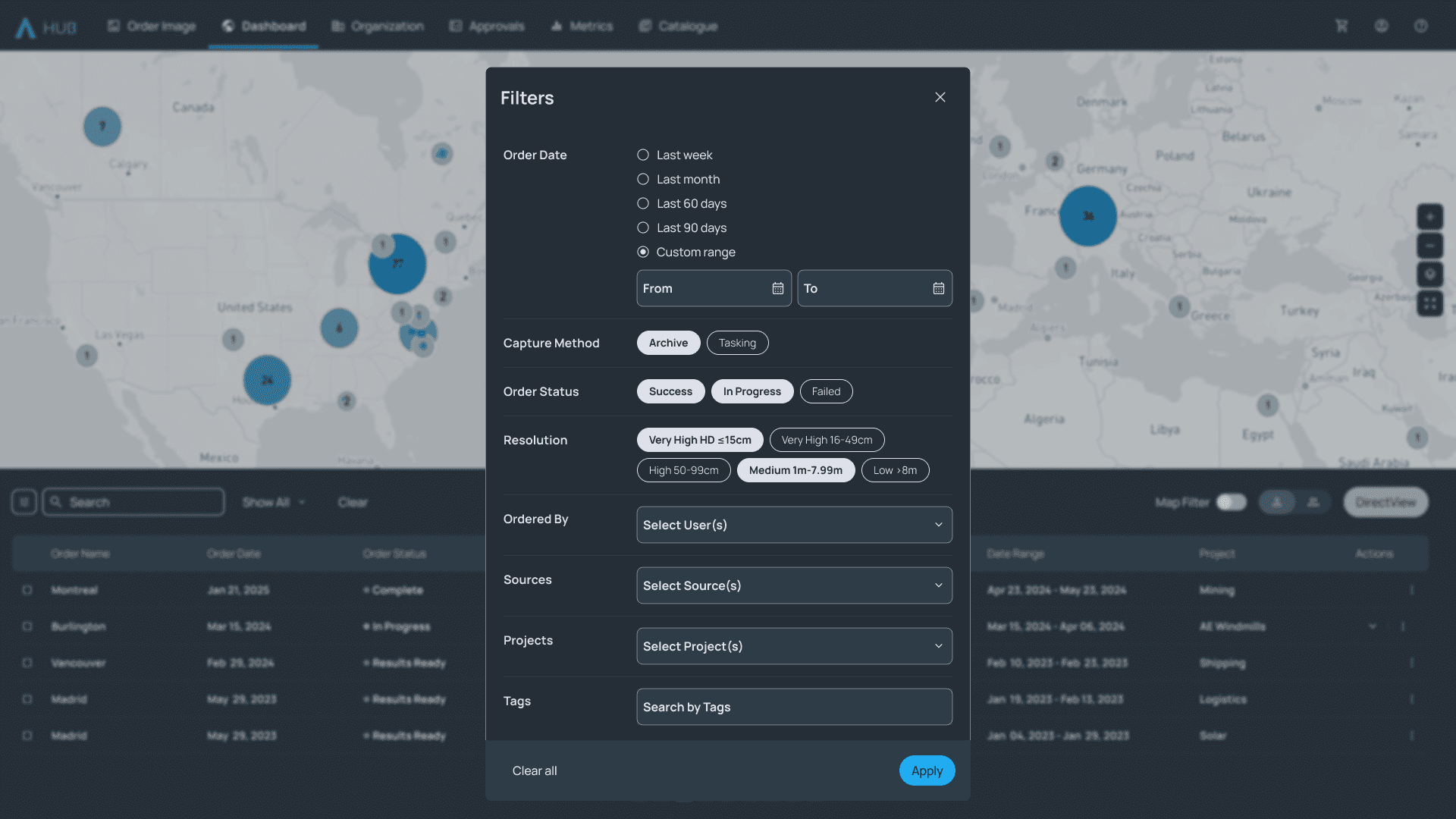
Enabling users to narrow down their search using filters and sorting.
organization
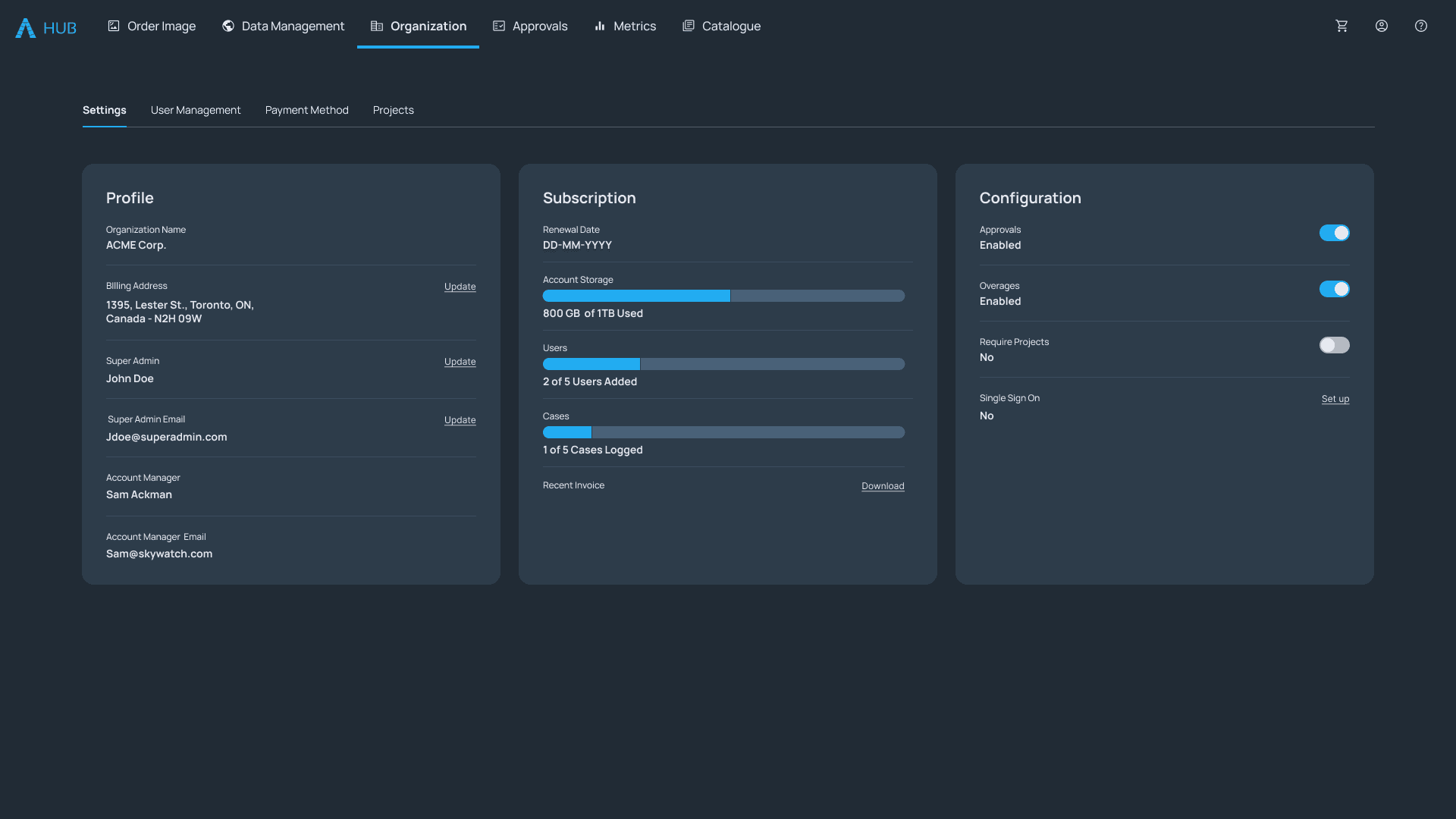
The SuperAdmin manages settings to reflect the organization’s policies and sets the stage for user management.
organization
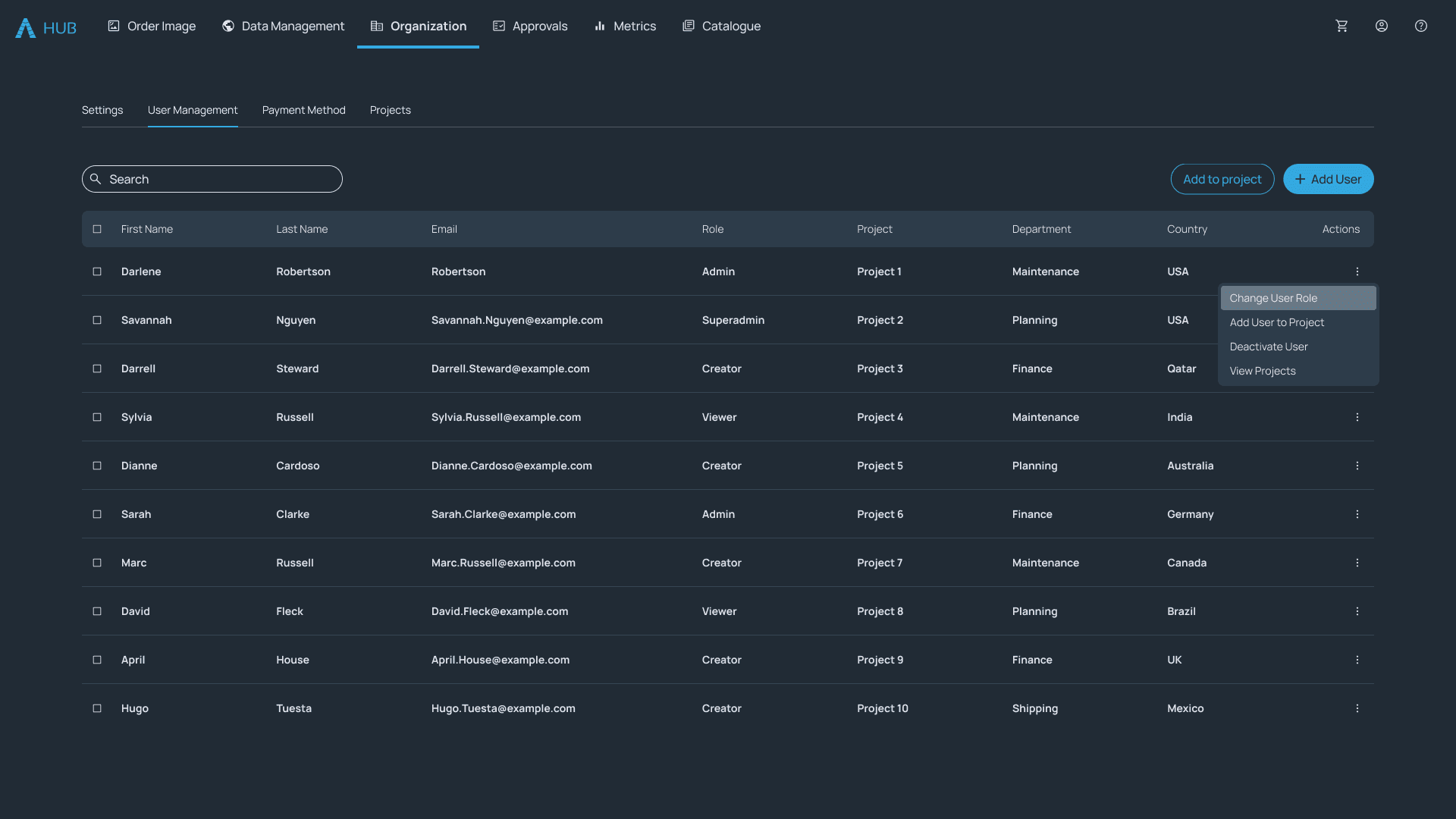
Superadmins can add and remove users to the organization and control their level of privileges.
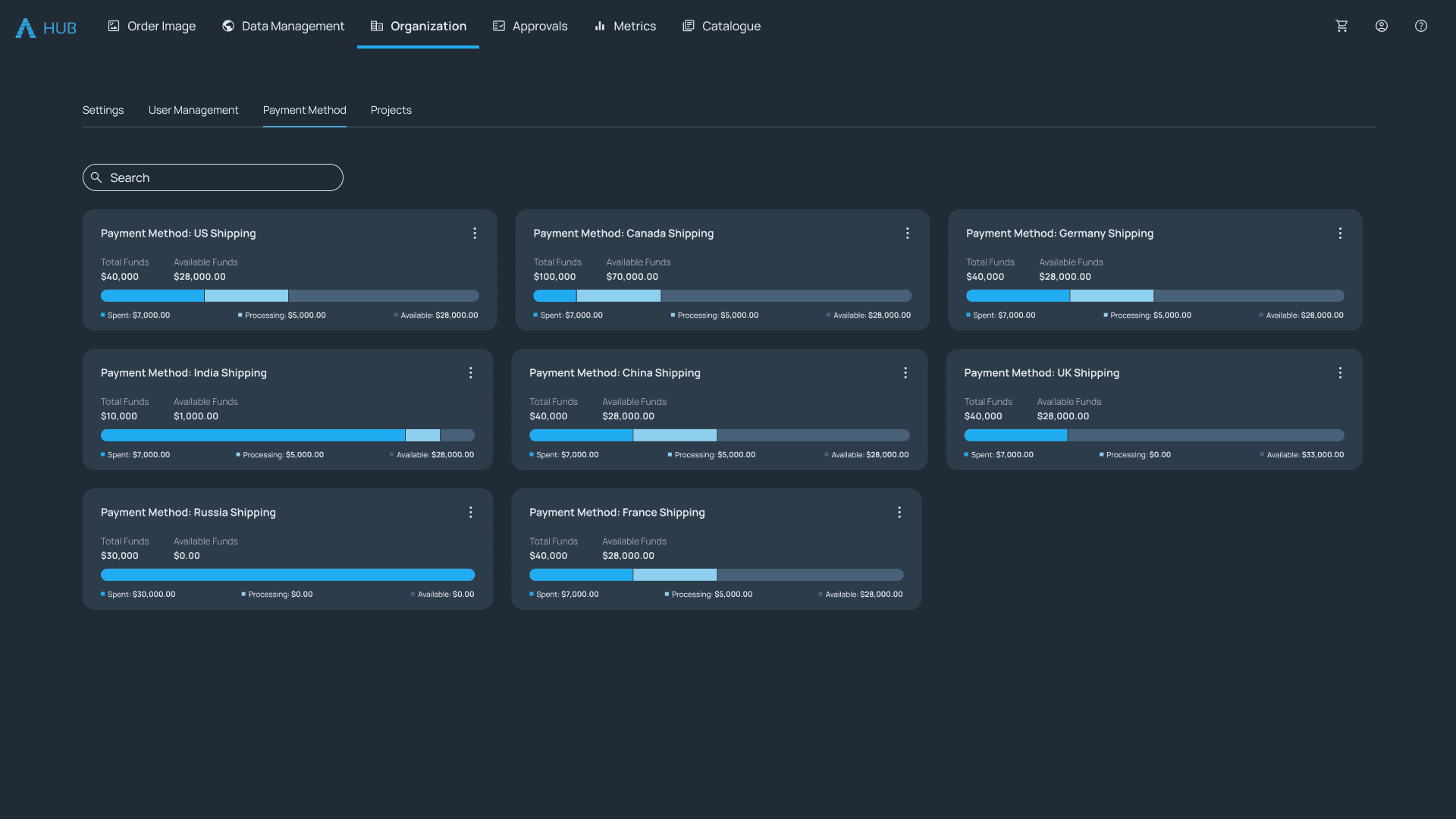
organization
Superadmins can add different prepaid payment methods and link them to a project for the organization can spend against and track them.
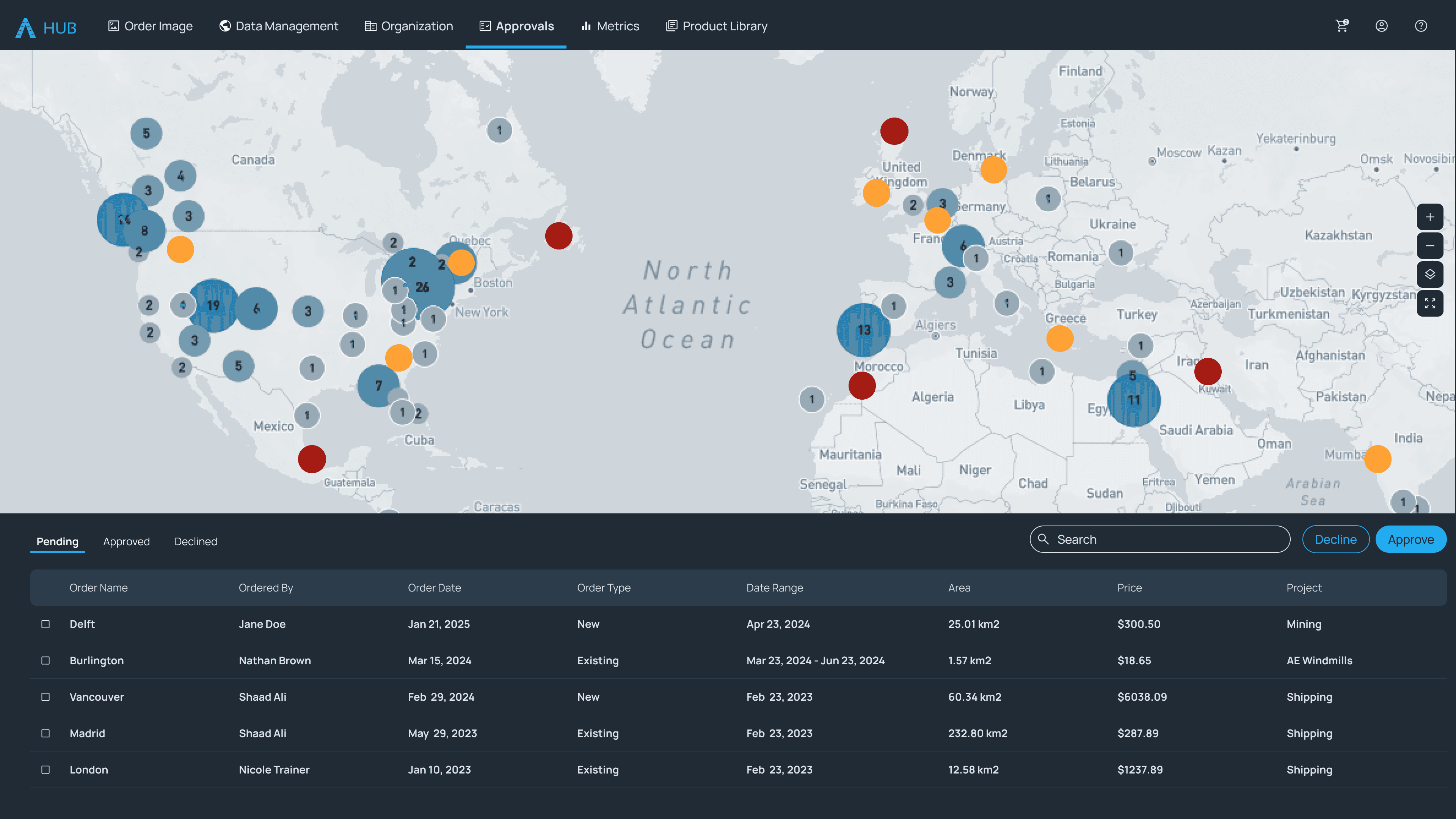
Approvals
Superadmins and Admins can manage, approve, decline and track organization's orders, allowing them to control the data being purchased and reduction in duplicate purchases.
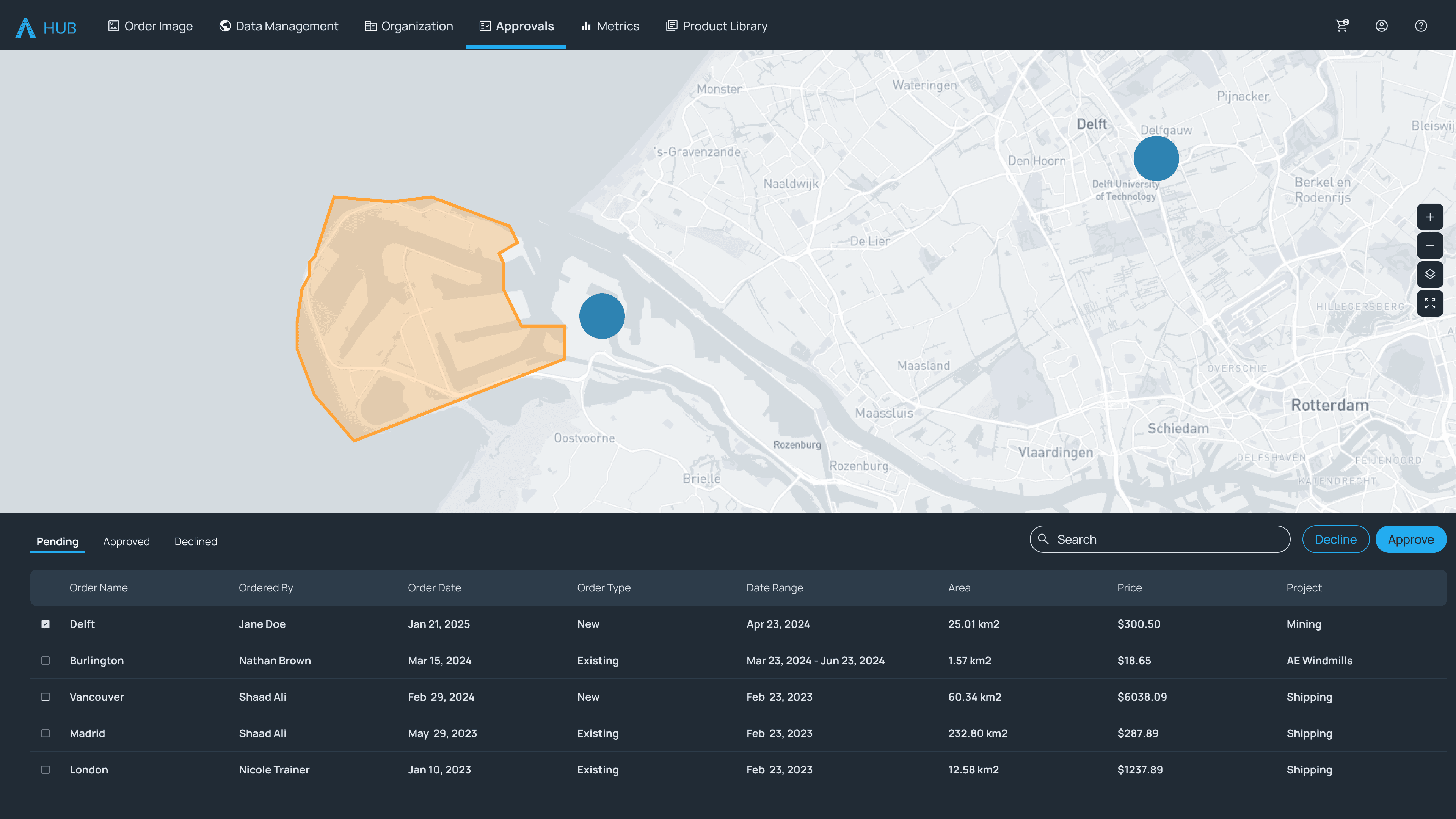
approvals
Users can click on the order pending approval and compare it with already purchased imagery on the map to ensure duplicate data does not get ordered.
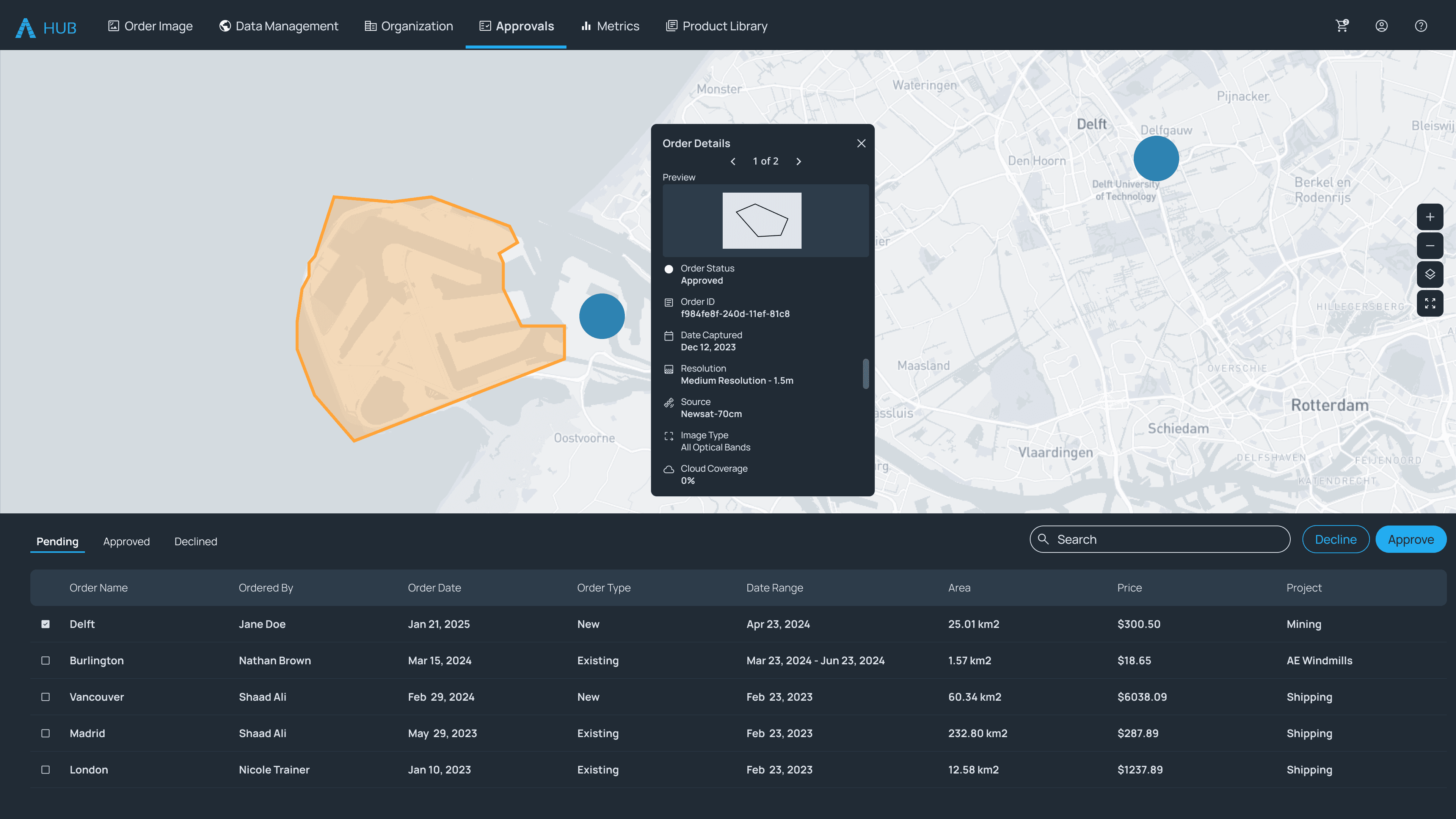
approvals
Users can click on the order pending approval to see more details and examine the preview.
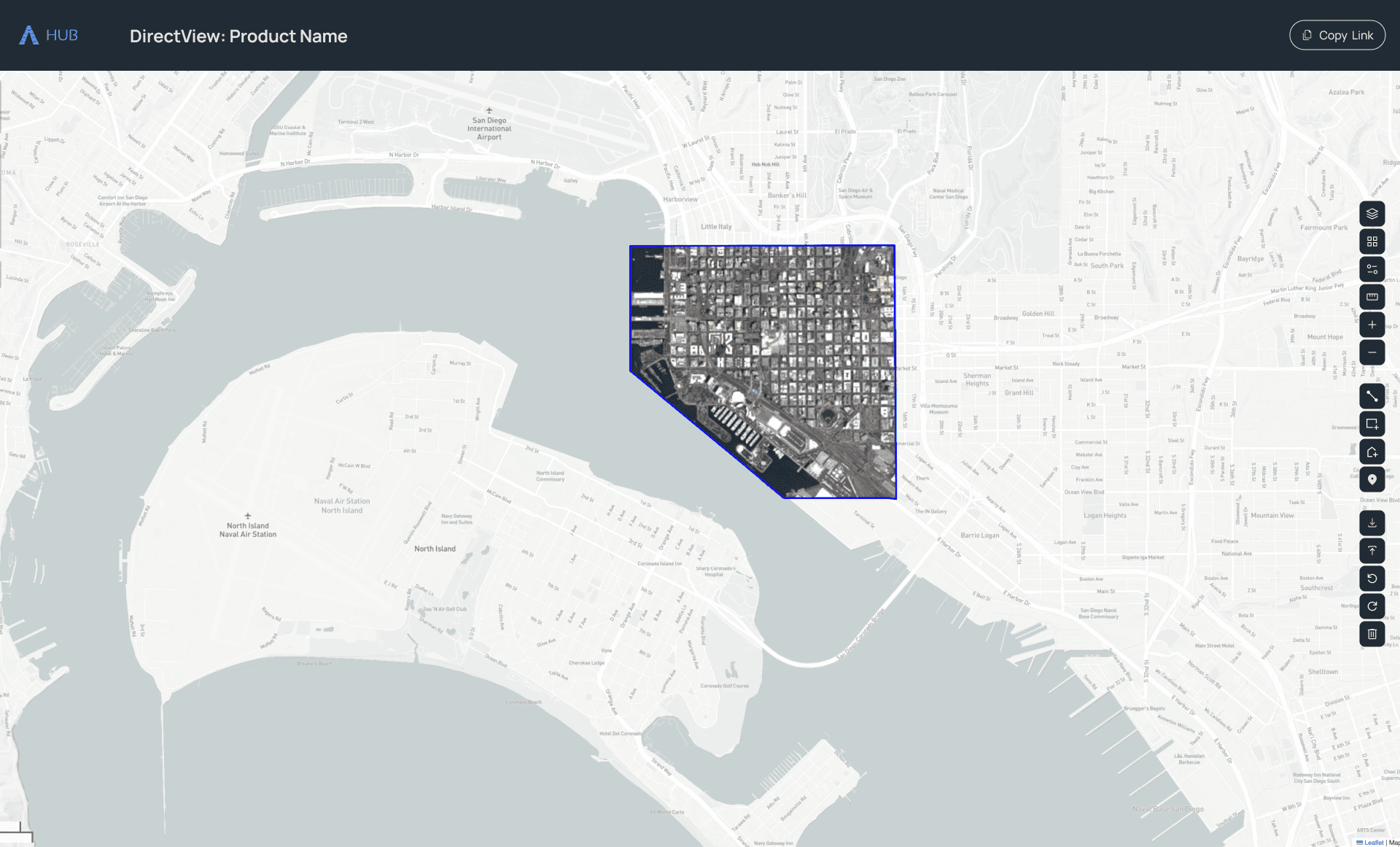
directview
Users can seamlesly share imagery with anyone within their organization through a web based viewer.
metrics
Allows users to gain insights into spend by month, data source, role, & user and view granular transaction detail for purchases across the organization
product CATALOGUE
Showcases all data sources with easy to use resolution, order type, provider, sensor type, and product type filters to help users in narrowing down their search.
product CATALOGUE
User can click on a Library item to view technical specifications and view and download sample data
Data Management DASHBOARD
Users can manage the status of their organization's orders, download and share it with their colleagues through a web viewer.
Data Management DASHBOARD
Enabling users to narrow down their search using filters and sorting.
organization
The SuperAdmin manages settings to reflect the organization’s policies and sets the stage for user management.
organization
Superadmins can add and remove users to the organization and control their level of privileges.
organization
Superadmins can add different prepaid payment methods and link them to a project for the organization can spend against and track them.
Approvals
Superadmins and Admins can manage, approve, decline and track organization's orders, allowing them to control the data being purchased and reduction in duplicate purchases.
approvals
Users can click on the order pending approval and compare it with already purchased imagery on the map to ensure duplicate data does not get ordered.
approvals
Users can click on the order pending approval to see more details and examine the preview.
directview
Users can seamlesly share imagery with anyone within their organization through a web based viewer.
metrics
Allows users to gain insights into spend by month, data source, role, & user and view granular transaction detail for purchases across the organization
product CATALOGUE
Showcases all data sources with easy to use resolution, order type, provider, sensor type, and product type filters to help users in narrowing down their search.
product CATALOGUE
User can click on a Library item to view technical specifications and view and download sample data
Data Management DASHBOARD
Users can manage the status of their organization's orders, download and share it with their colleagues through a web viewer.
Data Management DASHBOARD
Enabling users to narrow down their search using filters and sorting.
organization
The SuperAdmin manages settings to reflect the organization’s policies and sets the stage for user management.
organization
Superadmins can add and remove users to the organization and control their level of privileges.
organization
Superadmins can add different prepaid payment methods and link them to a project for the organization can spend against and track them.
Approvals
Superadmins and Admins can manage, approve, decline and track organization's orders, allowing them to control the data being purchased and reduction in duplicate purchases.
approvals
Users can click on the order pending approval and compare it with already purchased imagery on the map to ensure duplicate data does not get ordered.
approvals
Users can click on the order pending approval to see more details and examine the preview.
directview
Users can seamlesly share imagery with anyone within their organization through a web based viewer.
metrics
Allows users to gain insights into spend by month, data source, role, & user and view granular transaction detail for purchases across the organization
product CATALOGUE
Showcases all data sources with easy to use resolution, order type, provider, sensor type, and product type filters to help users in narrowing down their search.
product CATALOGUE
User can click on a Library item to view technical specifications and view and download sample data
Data Management DASHBOARD
Users can manage the status of their organization's orders, download and share it with their colleagues through a web viewer.
Data Management DASHBOARD
Enabling users to narrow down their search using filters and sorting.
organization
The SuperAdmin manages settings to reflect the organization’s policies and sets the stage for user management.
organization
Superadmins can add and remove users to the organization and control their level of privileges.
organization
Superadmins can add different prepaid payment methods and link them to a project for the organization can spend against and track them.
Approvals
Superadmins and Admins can manage, approve, decline and track organization's orders, allowing them to control the data being purchased and reduction in duplicate purchases.
approvals
Users can click on the order pending approval and compare it with already purchased imagery on the map to ensure duplicate data does not get ordered.
approvals
Users can click on the order pending approval to see more details and examine the preview.
directview
Users can seamlesly share imagery with anyone within their organization through a web based viewer.
Product Sneak Peek
Additional product capabilities
© 2025 – Garima Singh
© 2025 – Garima Singh
© 2025 Garima Singh